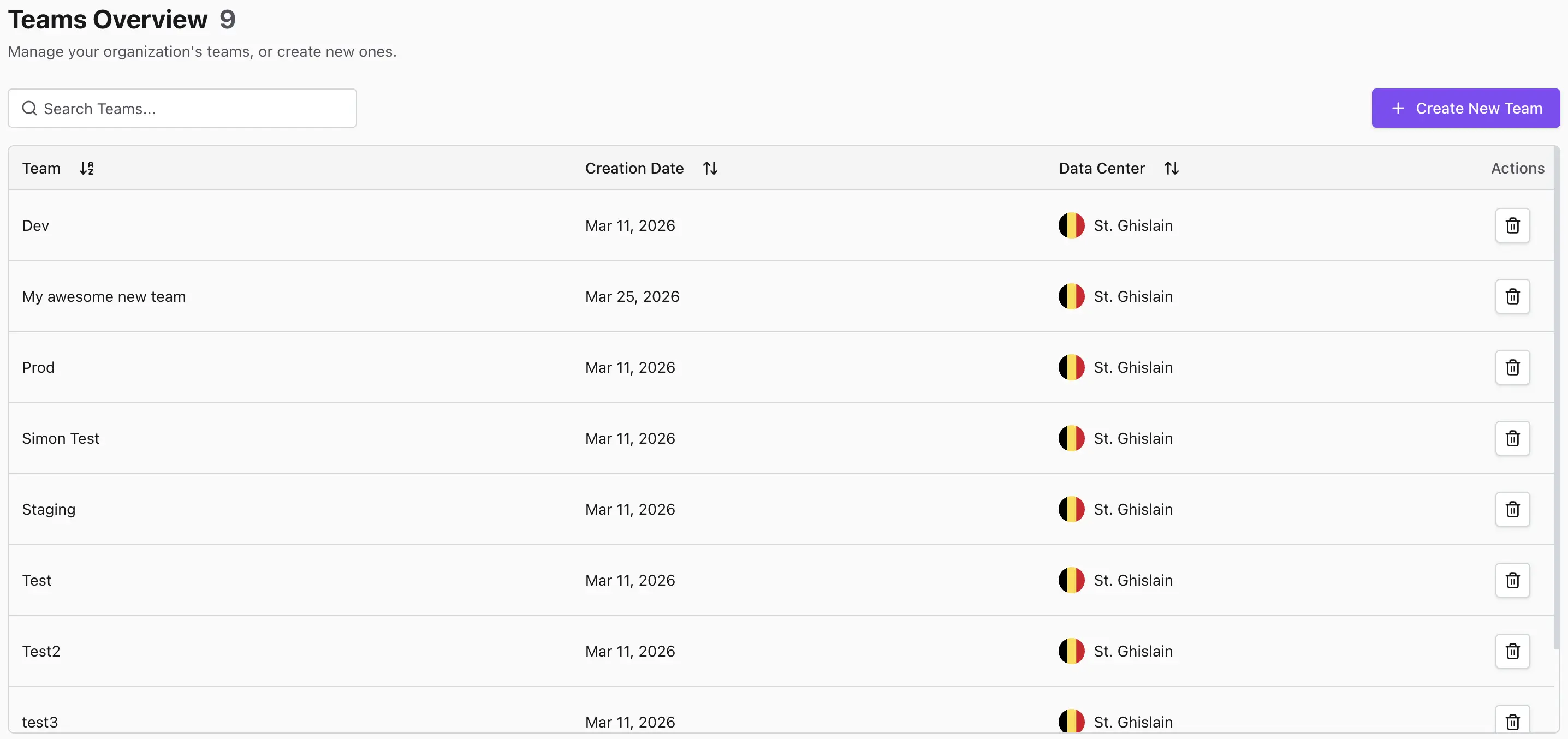
Creating an Organization Resource Group
This guide walks you through the process of creating a new Resource Group directly within an existing Organization using the Codesphere user interface. By creating a resource group directly under an Organization, you ensure that it is immediately governed by your centralized access controls.
Scenario Overview
You are an Organization Admin and want to spin up a new collaborative workspace for a specific project group. You will use the Codesphere Dashboard to create the new resource group, assign its geographic datacenter, and verify its creation.
Access Organization Settings
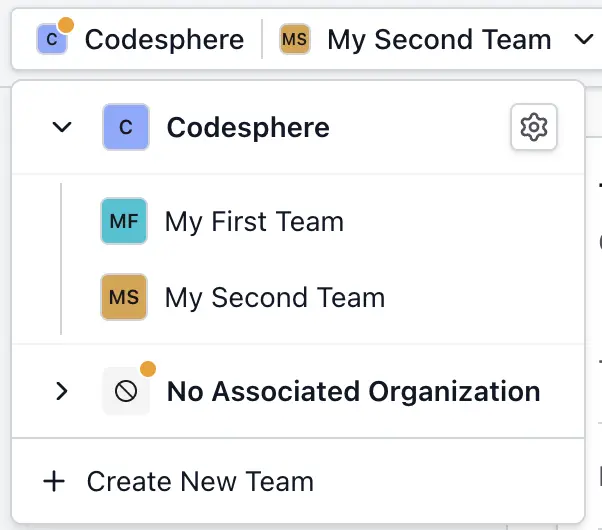
- Look at the top-left corner of the Codesphere UI and open the Organization and Resource Group Selector dropdown.
- In this menu, Organizations are represented by folder icons. Locate the Organization where you want to create the new resource group.
- Click the small Settings icon (gear icon) next to the Organization name.
Initiate Resource Group Creation
Clicking the settings icon takes you to the organization's management view, specifically the Resource Groups table, which lists all currently associated resource groups.
- Look at the top right of the Resource Groups table.
- Click the Create New Resource Group button.
Configure the New Resource Group
A "Create Resource Group" dialog will appear on your screen, prompting you for the foundational details of the new resource group.
- Resource Group Name: Enter a descriptive name for your new resource group.
- Default Datacenter: Select the geographic region where this resource group's workloads and data should be hosted (important for data sovereignty and latency).
- Click the Create button to confirm and provision the resource group.
Verify Resource Group Creation
Once the provisioning is complete, the dialog will close automatically.
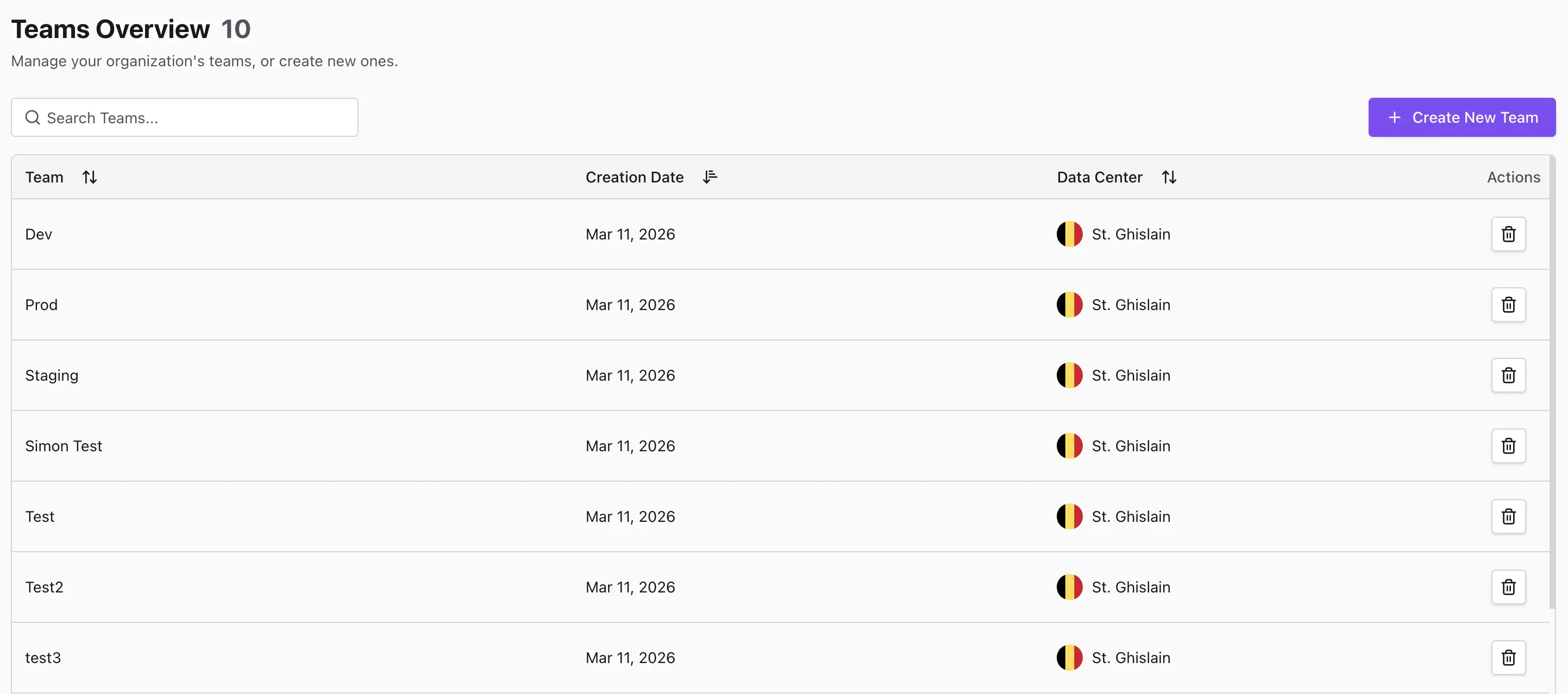
- Review the Resource Groups table on your screen.
- The newly created resource group will now be immediately visible in the list of resource groups belonging to your organization.