Bitbucket Preview Deployment
This guide explains how to automatically create a Preview Codesphere Workspace for every Pull Request (PR) opened in your Bitbucket repository. This allows your team to review changes in a live environment before merging.
Prerequisites
Before setting up the automation, ensure you have the following ready:
- Codesphere Account
- Admin access to the Bitbucket repository you wish to connect
Recommended: Use a Service Account
For production environments, we strongly recommend using a Service Account (a dedicated machine user) rather than a personal developer account. This prevents automation from breaking if a team member leaves.
- Create a Service Account: Sign up for a new Codesphere account using a dedicated email alias, e.g.,
[email protected]. - Invite to Resource Group: Log into your main Codesphere account and invite this new service account to your target Resource Group.
- Connect Bitbucket: Log in as the service account and ensure it has the necessary permissions to access your Bitbucket repository.
- Generate an API Token: In Codesphere, go to Account Settings > API Keys and create a new token for this service account. Store it as a Bitbucket Repository Variable (see below).
Authenticating with EMAIL and PASSWORD is deprecated. Use API_TOKEN instead. The old variables still work but will log a deprecation warning in your pipeline run.
Setting Up Preview Deployments
- If you haven't done so already, create a Codesphere user with a username & password (OAuth won't work for using Bitbucket Pipelines) - we recommend creating a separate sysadmin user for this.
- Log in to your new user and connect it to Bitbucket by clicking the "+ Create Workspace" button
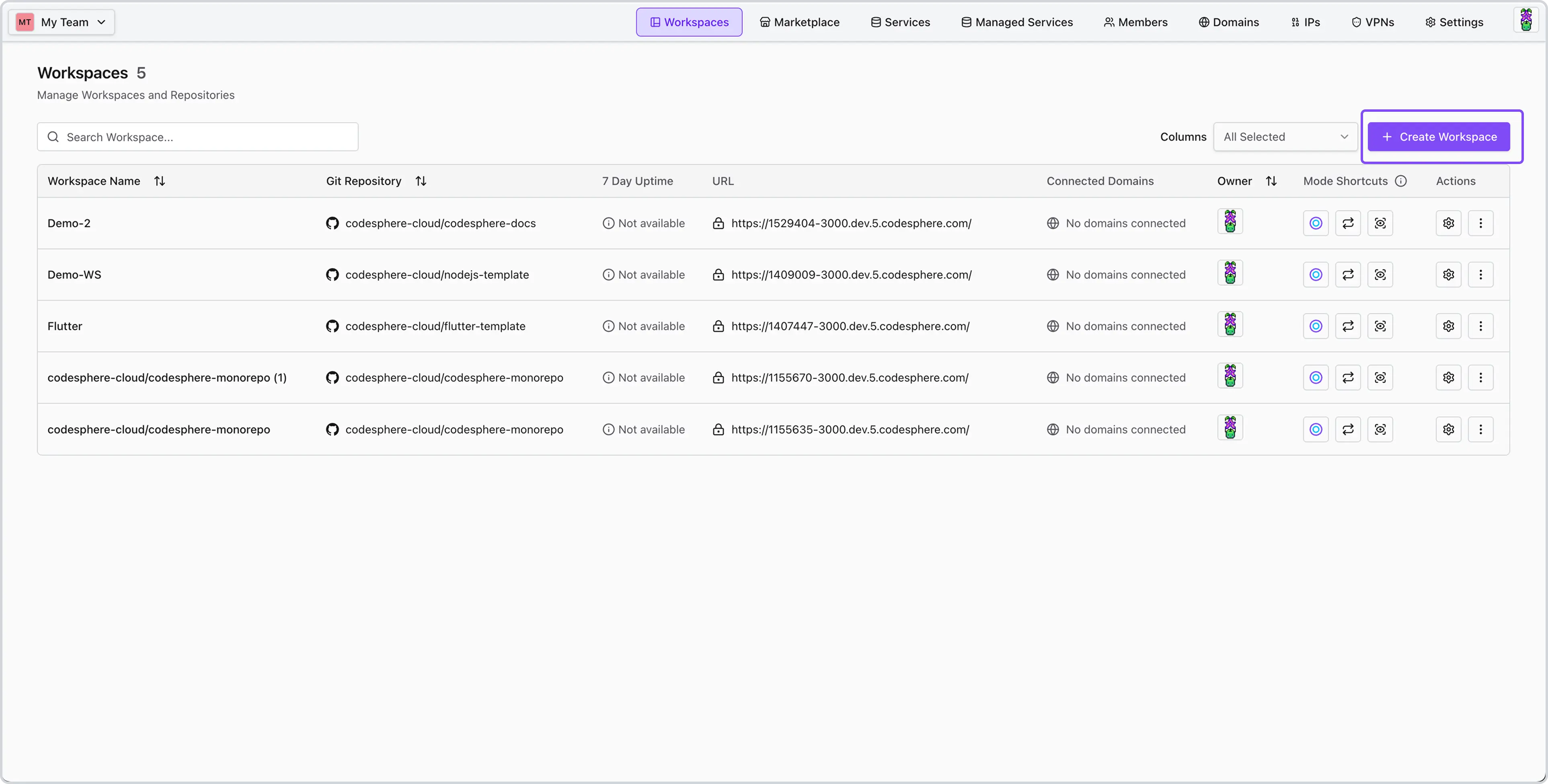
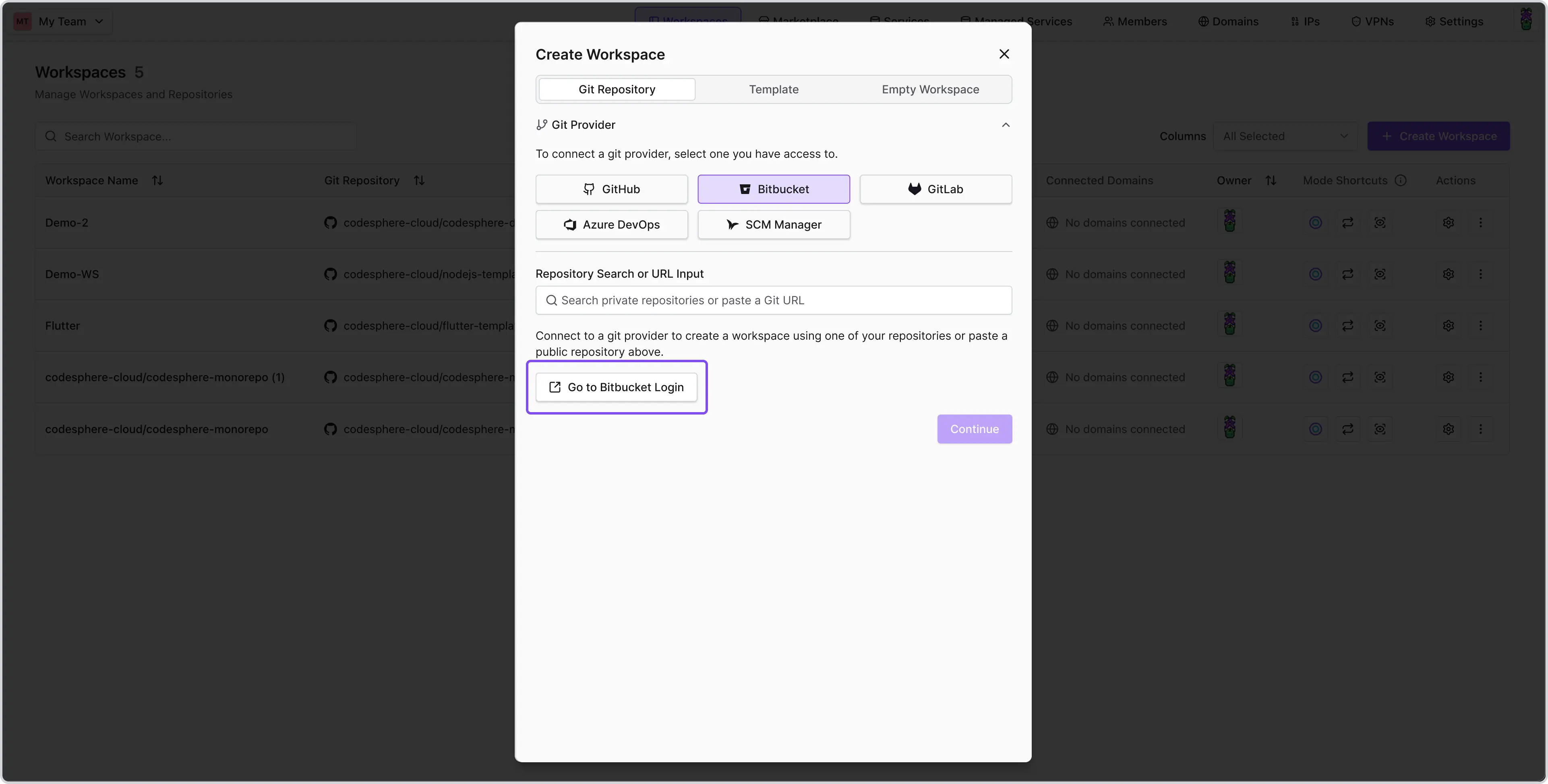
and selecting "Go to Bitbucket Login" in the "Create Workspace" modal.
Once signed in, you'll be able to select from your available repositories.
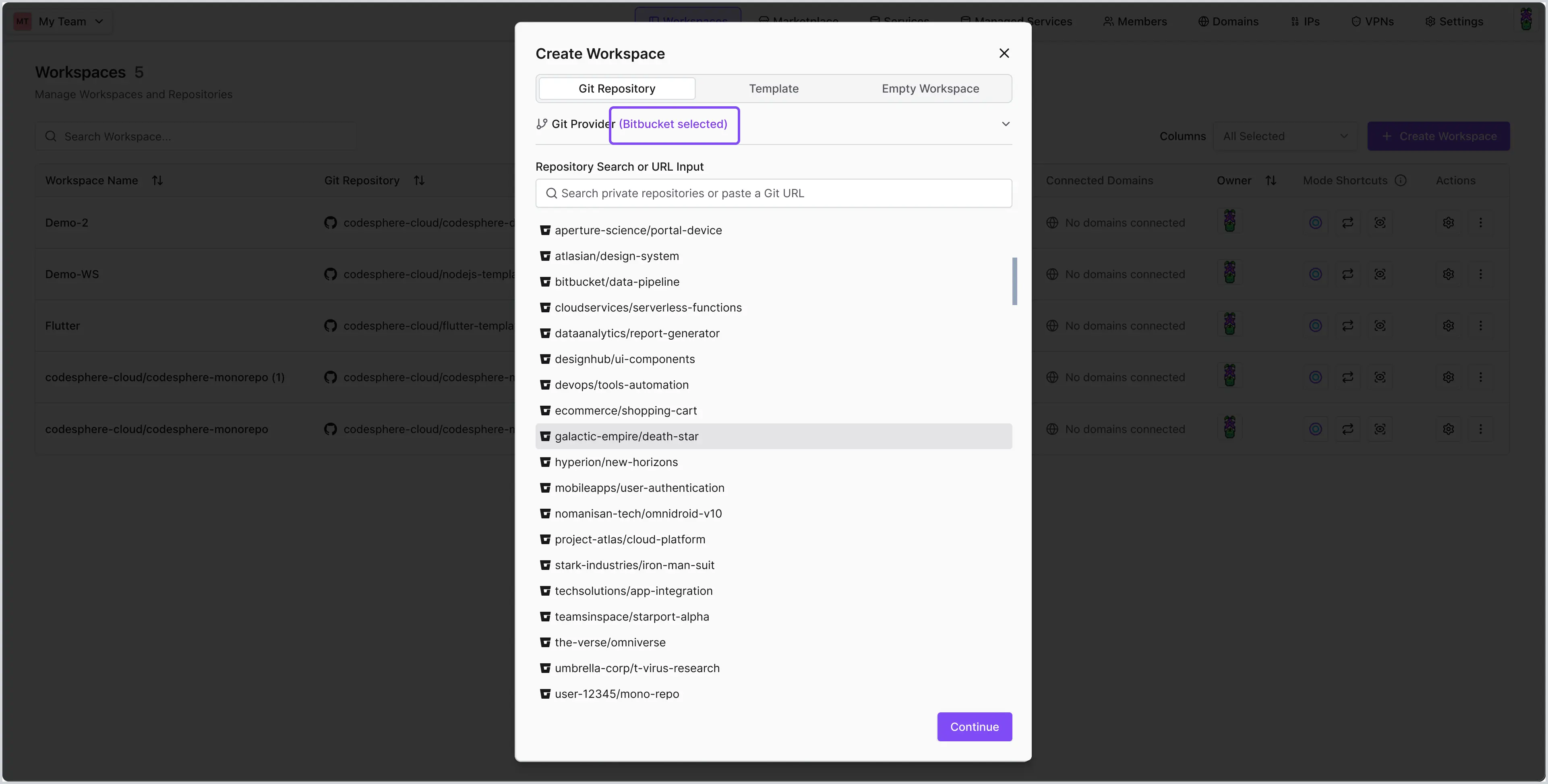
- Ensure the connected Bitbucket account has access to the repository for which you are setting up the preview deployments.
- Make sure the repository has a Codesphere CI pipeline with instructions on how to build & run your app that your Pipeline can then use to create your preview deployment.
- Enable Pipelines for your Bitbucket account (requires 2FA to be set).
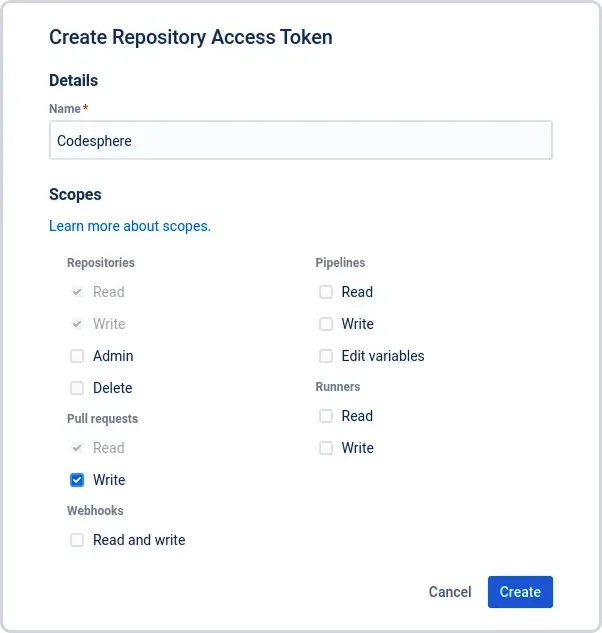
- Create a Bitbucket access token with read & write access to the repo and pull requests.
- Navigate to repository Settings > Pipelines > Repository Variables and add the following secrets to the repositories' environment variables - make sure to set the secured checkbox. You can find more information on which variables can be set below.
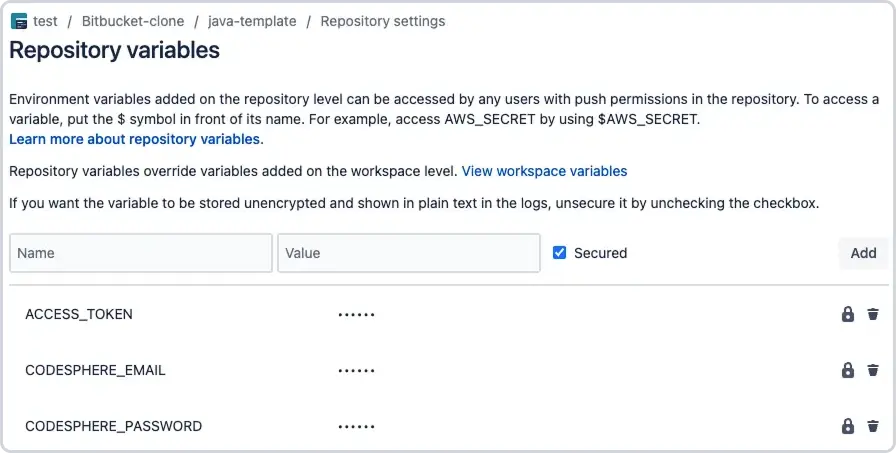
- Create a
bitbucket-pipelines.ymlfile in the root of your repository and add the following code:
image: atlassian/default-image:3

pipelines:
  pull-requests:
    '**':
      - step:
          deployment: Test
          script:
            - pipe: docker://ghcr.io/codesphere-cloud/codesphere-monorepo/integrations/bitbucket-ci:latest
              variables:
                API_URL: https://cloud.codesphere.com # replace with your instance URL
                ACCESS_TOKEN: $ACCESS_TOKEN
                API_TOKEN: $CODESPHERE_API_TOKEN
                RESOURCE_GROUP: My Resource Group
                PLAN: Micro
                DEPLOYMENT_LINK_TYPE: preview  # or 'dev-domain'
                VPN_CONFIG: vpnConfigName
                SHARED_VAULT_NAME: sharedVaultName
                CI_PROFILE: my-ci-profile
                CODESPHERE_RESTRICTED: 'false'
                CODESPHERE_BASE_IMAGE: my-base-image
                GIT_CLONE_DEPTH: '1'
                GIT_SKIP_LFS: 'false'
                GIT_RECURSE_SUBMODULES: 'true'
                TLS_ALLOW_UNAUTHORIZED: 'false'
                ENV: |
                    testing=abc
You can configure your Pipeline to have different triggers than just Pull Requests. Find more information on Bitbucket's available Pipeline settings here.
Available Variables
The following are the variables you can use for your Repository variables.
(*) = required variable.
| Variable | Usage |
|---|---|
| API_URL (*) | The base URL for your codesphere instance including https:// i.e. https://cloud.codesphere.com |
| ACCESS_TOKEN (*) | The access token you created for the repository. It is recommended to use a secure repository variable. |
| API_TOKEN | Recommended. Your Codesphere API token, generated in Account Settings > API Keys. When set, EMAIL and PASSWORD are ignored. |
(Deprecated) Email of the Codesphere user. Use API_TOKEN instead. | |
| PASSWORD | (Deprecated) Password of the Codesphere user. Use API_TOKEN instead. |
| RESOURCE_GROUP (*) | Name of the Codesphere resource group. The old name TEAM still works as an alias. |
| PLAN | Workspace plan of the workspace that will be created. Available options Micro, Boost, Pro. Default: Boost. |
| ON_DEMAND | Decide whether this preview deployment should be deployed in always on or off when unused deployment mode. Available options true, false |
| ENV | Set environment variables in your workspace. Define them in the same way you would, when using dotenv in a Node.js project. See https://www.npmjs.com/package/dotenv for details. |
| VPN_CONFIG | If you have created a VPN configuration for this resource group you can reference it here by its config name. This will connect created preview deployments to this VPN connection. |
| SHARED_VAULT_NAME | If you have created a shared vault for this resource group you can reference it here by its name. Preview deployments will reuse the vault's secrets instead of maintaining their own isolated set, so secrets can be maintained once and shared across all preview deployments. The shared vault must already be configured in the resource group. See Secret Management → Shared Vaults. |
| DEPLOYMENT_LINK_TYPE | Controls the format of the deployment link posted to the PR comment. preview opens an interactive preview where reviewers can leave frontend comments. dev-domain links directly to the workspace's development domain. Default: dev-domain. |
| CI_PROFILE | Name of the CI profile to use for the deployment. Defaults to the repository's ci.yml. |
| CODESPHERE_RESTRICTED | If true, the workspace's dev domain is only reachable by resource group members instead of being public. Default: false. |
| CODESPHERE_BASE_IMAGE | Overrides the base image the workspace is created from. Defaults to the plan's default image. |
| GIT_CLONE_DEPTH | Shallow-clone depth used when checking out the repository. Defaults to the full history. |
| GIT_SKIP_LFS | If true, skips downloading (smudging) Git LFS files during clone. Default: false. |
| GIT_RECURSE_SUBMODULES | If false, submodules are not initialized and cloned. Default: true. |
| TLS_ALLOW_UNAUTHORIZED | If true, disables TLS certificate verification when talking to the Codesphere API. Only use this for self-hosted instances with self-signed certificates. Default: false. |
Additional Information
After following this guide, your Pipeline will run on every pull request and create a Preview Deployment for you to review your changes. It will add a new comment to your Pull Request that includes the domain to your Preview Deployment.
