GitHub Preview Deployments
This guide explains how to automatically create a Preview Codesphere Workspace for every Pull Request (PR) opened in your GitHub repository. This allows your team to review changes in a live environment before merging.
Architectural Overview
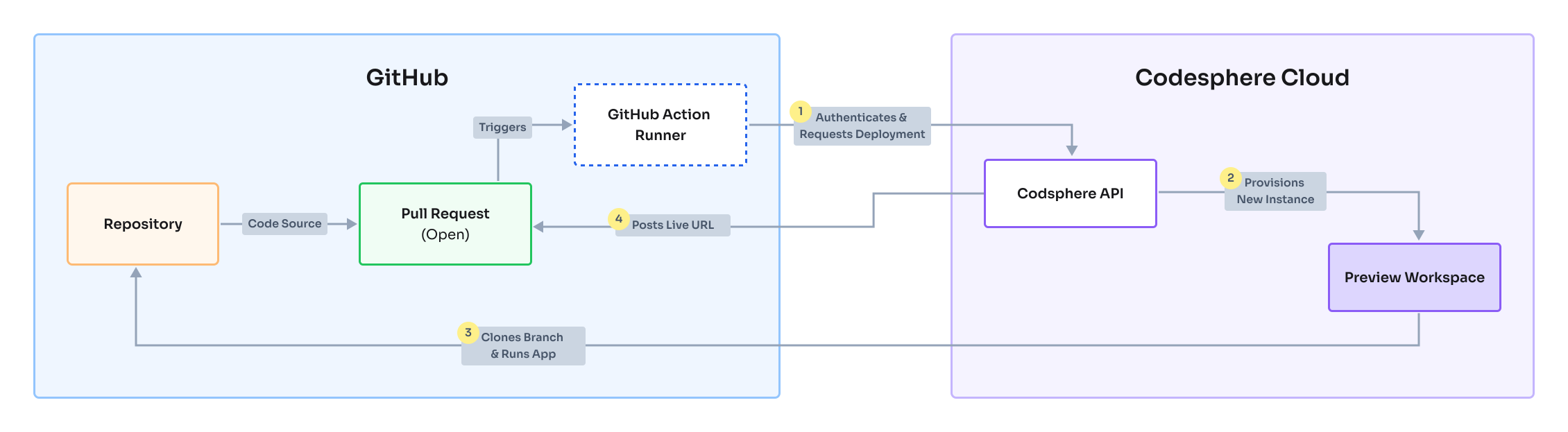
Corresponding accessible text description
Prerequisites
Before setting up the automation, ensure you have the following ready:
- Codesphere Account
- Admin access to the GitHub repository you wish to connect
Recommended: Use a Service Account
For production environments, we strongly recommend using a Service Account (a dedicated machine user) rather than a personal developer account. This prevents automation from breaking if a team member leaves.
- Create a Service Account: Sign up for a new Codesphere account using a dedicated email alias, e.g.,
[email protected]. - Invite to Resource Group: Log into your main Codesphere account and invite this new service account to your target Resource Group.
- Connect Git: Log in as the service account and ensure it has the necessary permissions to access your GitHub repository.
- Generate an API Token: In Codesphere, go to Account Settings > API Keys and create a new token for this service account. Store it as a GitHub Secret (see below).
Authenticating with email and password is deprecated. Use apiToken instead. The old inputs still work but will log a deprecation warning in your workflow run.
Configure GitHub Secrets
To allow GitHub Actions to communicate with Codesphere securely, you need to store your credentials as encrypted secrets.
- Open your repository on GitHub.
- Navigate to Settings > Secrets and Variables > Actions.
- Click New repository secret and add the following two secrets:
| Secret Name | Value |
|---|---|
CODESPHERE_API_TOKEN | A Codesphere API token generated in Account Settings > API Keys. |
CODESPHERE_EMAIL | (Deprecated) Your Codesphere login email address. Use CODESPHERE_API_TOKEN instead. |
CODESPHERE_PASSWORD | (Deprecated) Your Codesphere account password. Use CODESPHERE_API_TOKEN instead. |
Add the Workflow File
You need to create a GitHub Actions workflow file that listens for Pull Request events.
- Create the directory
.github/workflows/in your repository root. - Create a file named
main.ymlinside that directory. - Paste the following configuration:
name: Codesphere Preview Deployment

on:
  workflow_dispatch:
  pull_request:
    types: [closed, opened, reopened, synchronize]

permissions:
  contents: read
  pull-requests: read
  deployments: write

jobs:
  deploy:
    name: Deploy to Codesphere
    # Prevent multiple workspaces from being created for the same PR
    concurrency: codesphere-preview-${{ github.event.pull_request.number }}
    runs-on: ubuntu-latest
    steps:
      - name: Checkout Code
        uses: actions/checkout@v6

      - name: Deploy Preview
        uses: codesphere-cloud/gh-action-deploy@main
        env:
          GITHUB_TOKEN: ${{ secrets.GITHUB_TOKEN }}
        with:
          apiToken: ${{ secrets.CODESPHERE_API_TOKEN }}
          team: 'My Resource Group'  # <--- REPLACE with your resource group name
          plan: 'Boost'           # Options: Micro, Boost, Pro
          onDemand: 'true'        # 'true' enables cost-saving standby mode
          deploymentLinkType: 'preview' # Options: preview, dev-domain
          apiUrl: 'https://cloud.codesphere.com' # replace with your instance URL
          sharedVaultName: 'my-shared-vault'  # Optional: reuse a resource group shared vault's secrets across preview deployments
          ciProfile: 'my-ci-profile'  # Optional: CI profile to use instead of the default
          restricted: 'false'    # Optional: 'true' restricts the dev domain to resource group members only
          baseImage: 'my-base-image'  # Optional: overrides the workspace's base image
          vpnConfig: 'my-vpn-config'  # Optional: attach the workspace to an existing resource group VPN config
          cloneDepth: '1'         # Optional: shallow-clone depth for the checkout
          skipLfs: 'false'        # Optional: 'true' skips downloading Git LFS files
          recurseSubmodules: 'true' # Optional: 'false' skips cloning submodules
          tlsAllowUnauthorized: 'false' # Optional: 'true' disables TLS certificate verification
          env: |                  # Optional: Add environment variables below
            MY_ENV=test
            DEBUG=true
Make sure to replace 'My Resource Group' with the exact name of your resource group in Codesphere (case-sensitive). You can find this in the top-left corner of the Codesphere UI.
Configuration Reference
The following inputs are supported by the codesphere-cloud/gh-action-deploy action:
| Option | Required | Description | Default / Values |
|---|---|---|---|
apiToken | Recommended | Your Codesphere API token. When provided, email and password are ignored. Generate one in Account Settings > API Keys. | - |
email | Deprecated | Your Codesphere account email. Use apiToken instead. | - |
password | Deprecated | Your Codesphere account password. Use apiToken instead. | - |
team | Yes | The exact name of your resource group in Codesphere. | - |
plan | No | The compute plan for the workspace. | Boost Options: Micro, Boost, Pro |
onDemand | No | If true, the workspace uses "Off when unused" mode to save costs (wakes up upon access). | false |
apiUrl | No | The base URL for your Codesphere API. | https://cloud.codesphere.com |
env | No | A list of environment variables to inject into the workspace (Key=Value format). | - |
deploymentLinkType | No | Controls the format of the deployment link posted to the PR. preview opens an interactive preview where reviewers can leave frontend comments. dev-domain links directly to the workspace's development domain. | dev-domain |
sharedVaultName | No | Name of a resource group shared vault to attach to the workspace. When set, the preview deployment reuses the vault's secrets instead of maintaining its own isolated set, so secrets can be maintained once and shared across all preview workspaces. The shared vault must already be configured in the resource group. See Secret Management → Shared Vaults. | - |
ciProfile | No | Name of the CI profile to use for the deployment. | The repository's ci.yml |
restricted | No | If true, the workspace's dev domain is only reachable by resource group members instead of being public. | false |
baseImage | No | Overrides the base image the workspace is created from. | The plan's default image |
vpnConfig | No | Name of a resource group VPN configuration to connect the preview deployment to. | - |
cloneDepth | No | Shallow-clone depth used when checking out the repository. | Full history |
skipLfs | No | If true, skips downloading (smudging) Git LFS files during clone. | false |
recurseSubmodules | No | If false, submodules are not initialized and cloned. | true |
tlsAllowUnauthorized | No | If true, disables TLS certificate verification when talking to the Codesphere API. Only use this for self-hosted instances with self-signed certificates. | false |
Use dotenv like environment variables definition. See https://www.npmjs.com/package/dotenv for details.
Deploy & Verify
- Commit and push the
main.ymlfile. - Open a new Pull Request in your repository.
- Check the PR status section.
You will see a "Deploy" check containing a direct link to your preview environment.

When you close or merge the Pull Request, this workflow will automatically shut down and delete the preview workspace to ensure you aren't charged for unused resources.