Working with Custom Domains
Codesphere allows you to connect your own domains (e.g., example.com) to your Workloads in addition to the generated <workspace-id>.<data-center>.<your-codesphere-instance-domain> URLs. This process involves adding the domain to your team, verifying ownership, and then routing traffic to your specific Workspace.
Adding a Domain to Your Team
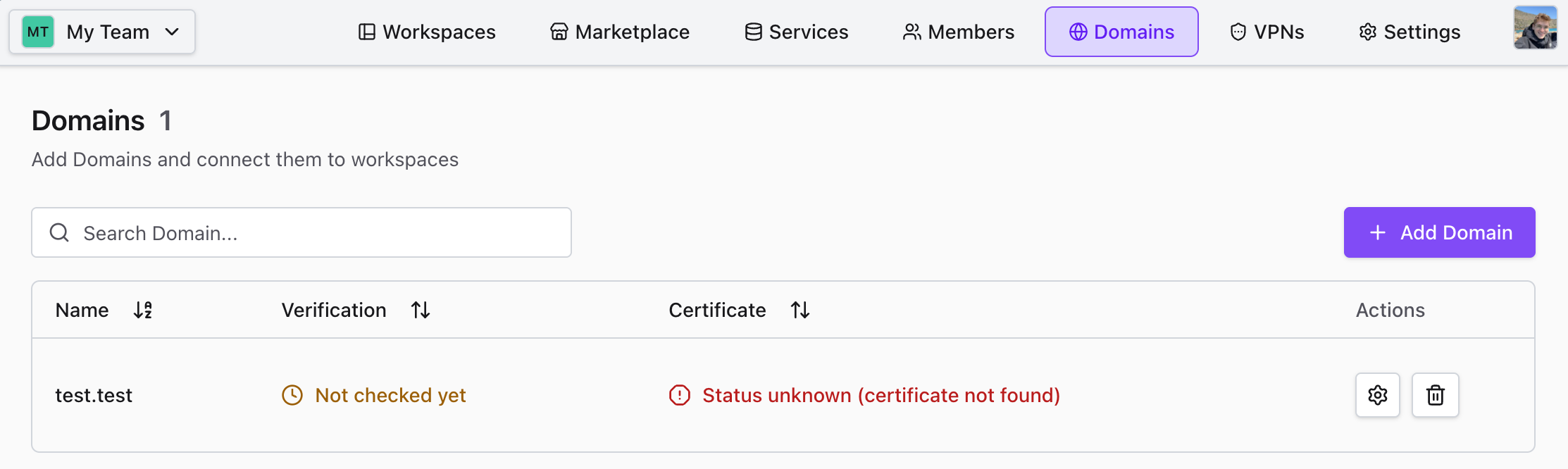
- Navigate to the Domains tab in your team dashboard.
- Click the + Add Domain button in the top right corner.
- Enter your domain name (e.g.,
your-domain.com) in the popup window and click Add.
Verifying Ownership (DNS Configuration)
Once added, you need to prove you own the domain by adding DNS records.
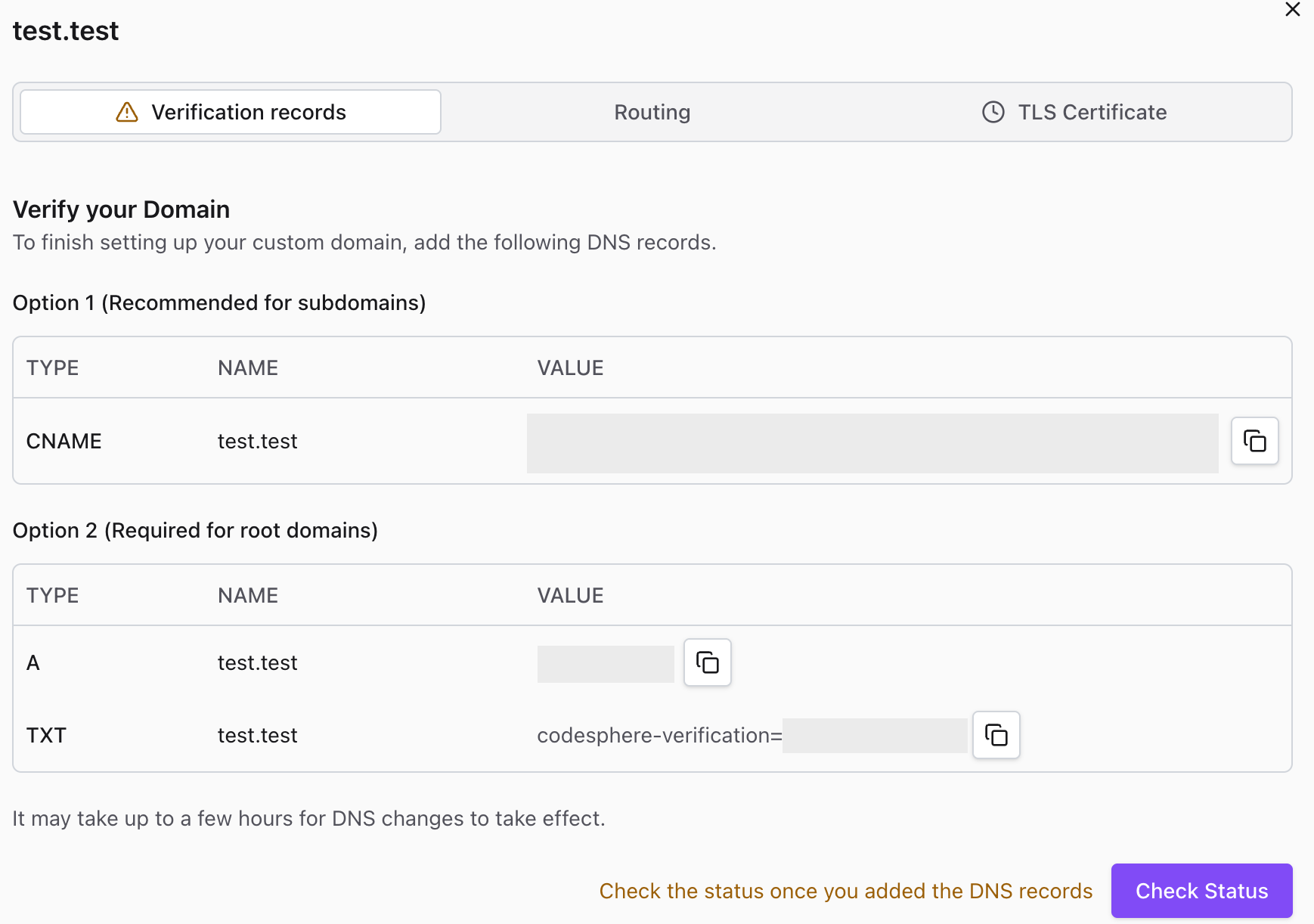
- Click the Settings (gear icon) next to your newly added domain to open the configuration panel.
- Go to the Verification records tab.
- You will see two options for verification. Choose the one that fits your use case:
- Option 1 (Recommended for subdomains): Add a
CNAMErecord pointing to the value shown (e.g.,...workspaces.codesphere.com). - Option 2 (Typically required for root/apex domains): Add an
Arecord pointing to the provided IP address (e.g.,145.40.95.110) and aTXTrecord with the provided verification string. Note: Some DNS providers (e.g., Cloudflare) also support CNAME records for root domains.
- Log in to your DNS provider (e.g., Cloudflare or Azure DNS) for the specified domain and add these records.
- Wait a few minutes for propagation, then click Check Status in Codesphere.
Routing Traffic to Your Services
After verification, you need to tell Codesphere which Workspace should receive traffic for this domain.
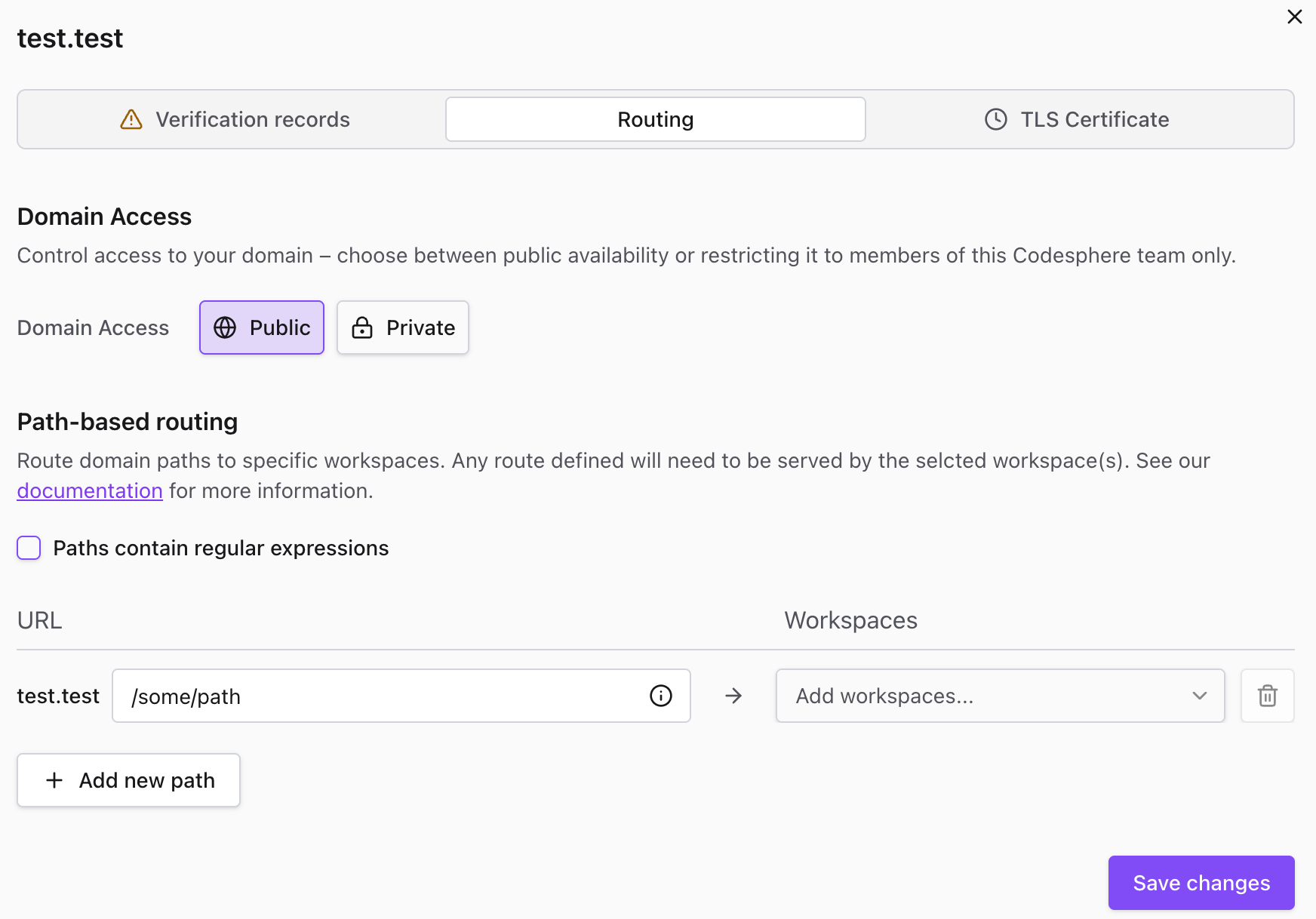
- Switch to the Routing tab in the domain settings.
- Domain Access: Choose whether the domain is Public (accessible to everyone) or Private (restricted to team members only).
- Path-based routing:
- In the URL field, leave the default
/to route all traffic, or specify a path prefix (e.g.,/api/) to route only matching requests. - In the Workspaces dropdown, select the Workspace you want to connect. You can select multiple Workspaces to create a traffic split (e.g., for A/B testing or gradual rollouts).
- Click + Add new path if you want to route specific paths (like
/api) to different Workspaces.
- In the URL field, leave the default
- Click Save changes.
You can connect multiple Workspaces to the same domain. In this case, traffic is split 1/N between all Workspaces.
TLS/SSL Certificates
Codesphere automatically manages TLS certificates for verified domains.
- Go to the TLS Certificate tab.
- Ensure Automated is selected. Codesphere will generate and renew certificates automatically once the domain is verified.
- (If the status is "Domain unverified," complete Step 2 first.)
In Private Cloud installations, automatic provisioning of TLS certificates depends on the specific configuration.
If you want to manage the certificates yourself, click the Self-Managed button. In this case, you will need to ensure your certificates stay up to date and replace expired certs on your own to prevent application downtime.
Removing a Domain
If you need to remove a domain:
- Click the Trash bin icon next to the domain in the list.
- Confirm the action by clicking Remove Domain in the warning popup.
If you link a domain to a workspace that is currently stopped, Codesphere will try to wake it up when a user visits the domain, but cold starts may cause a slight delay. Ensure your production workspaces are set to "Always On" for the best user experience.