Deploying Services
This guide provides a comprehensive overview of the lifecycle of a managed service in Codesphere. It covers the practical steps for deploying, configuring, maintaining, and eventually deleting services.
Deploying Managed Services
Deploying a managed service can be done through the Codesphere UI or the public API.
A managed service can either be an independent deployment or integrated into the landscape lifecycle. This guide will cover how to deploy an independent service. For information on how to deploy services as part of a landscape, refer to the Managed Services in Landscapes section.
- UI
- API
-
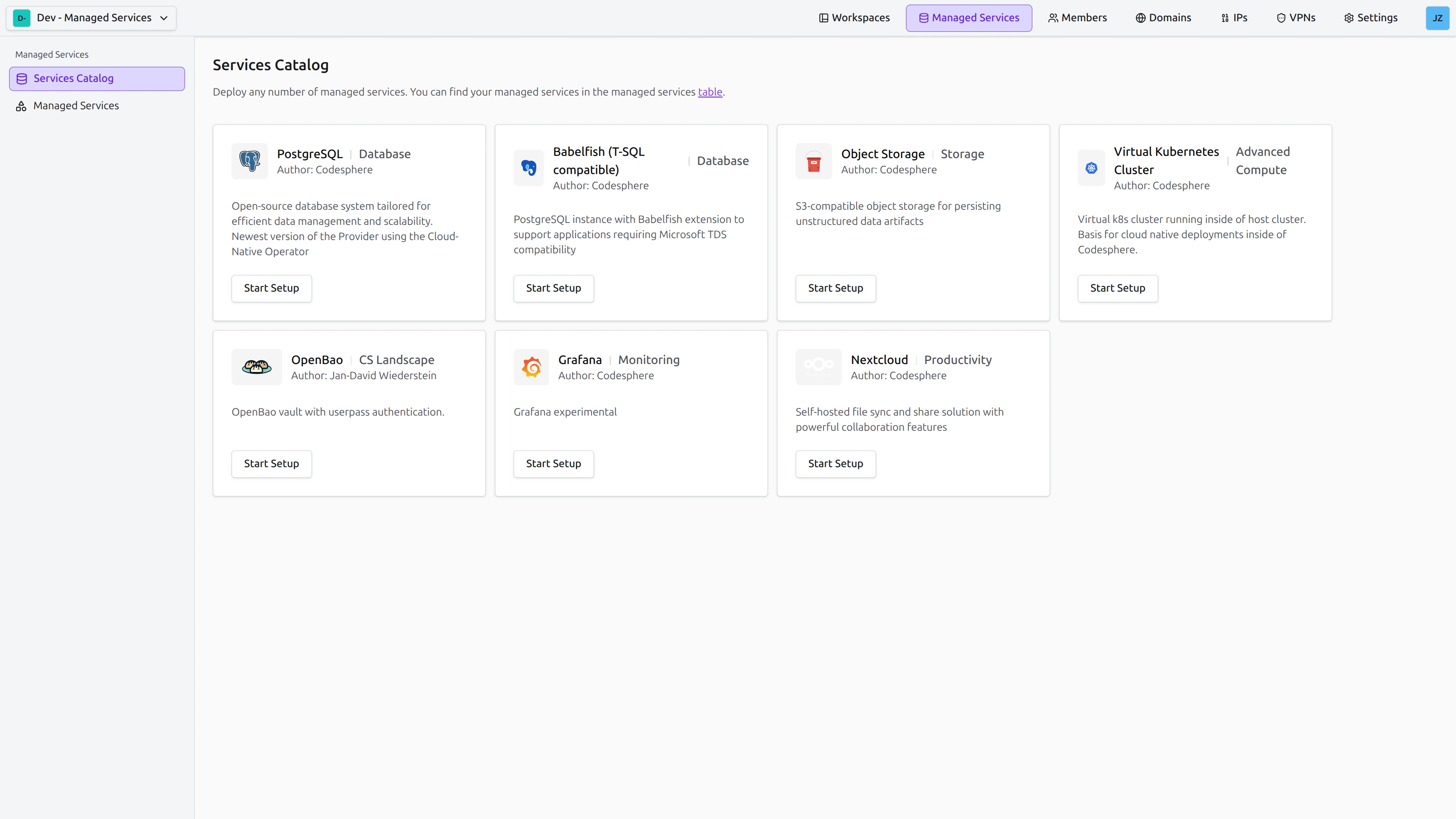
Navigate: Go to the Managed Services tab.
-
Select: Choose the desired service-provider from the catalog. Services are marked with categories (e.g., Database, Cache). In this example we choose PostgreSQL. Click "Start Setup"
-
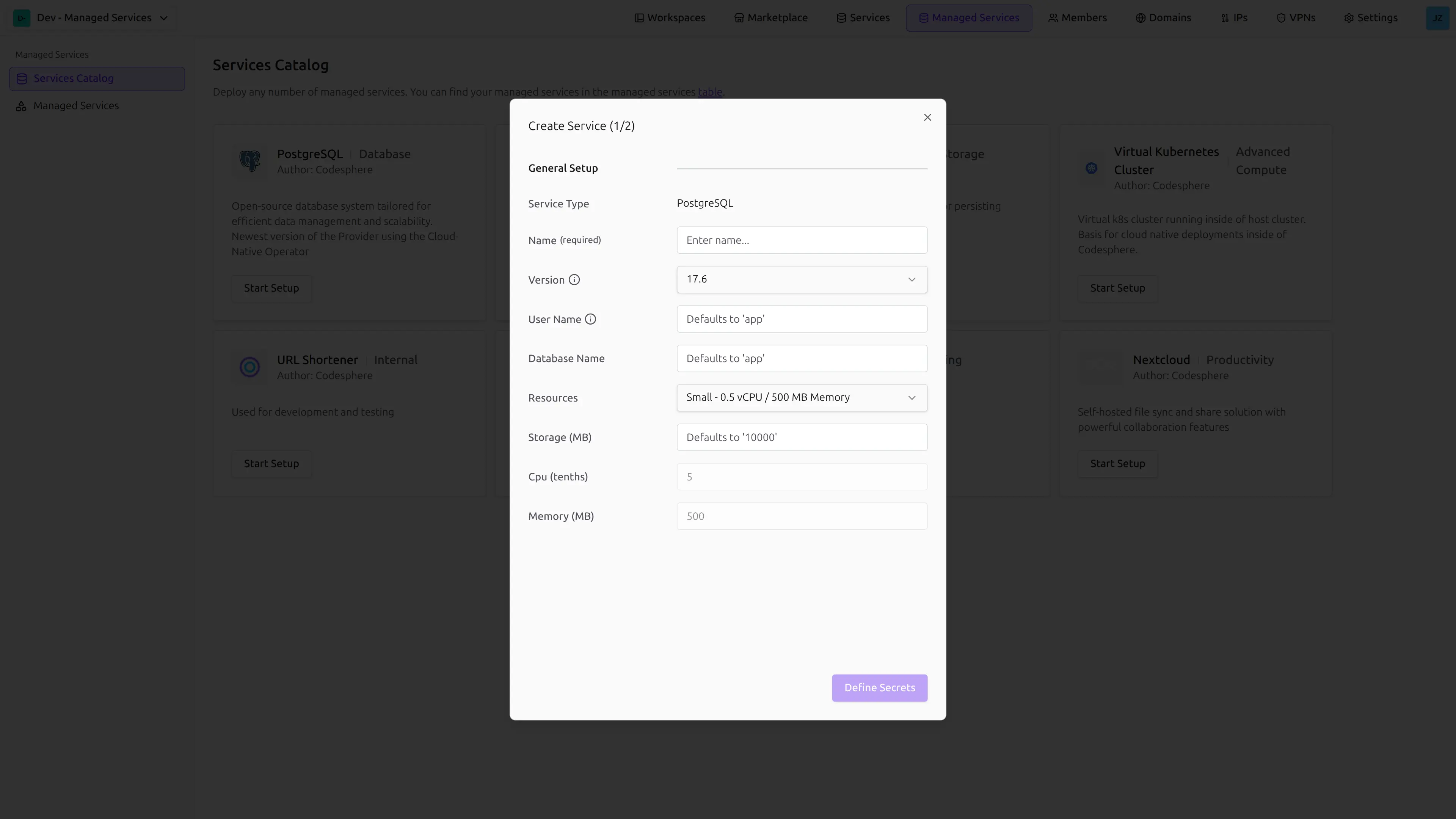
Configure: A configuration modal will appear. Set the initial parameters. You can leave non-required parameters at their default values and update them later if needed. Some parameters (like User name in this PostgreSQL example) have specific requirements. Hover over the "Info"-Icon to learn more. Click "Define Secrets" to proceed.
-
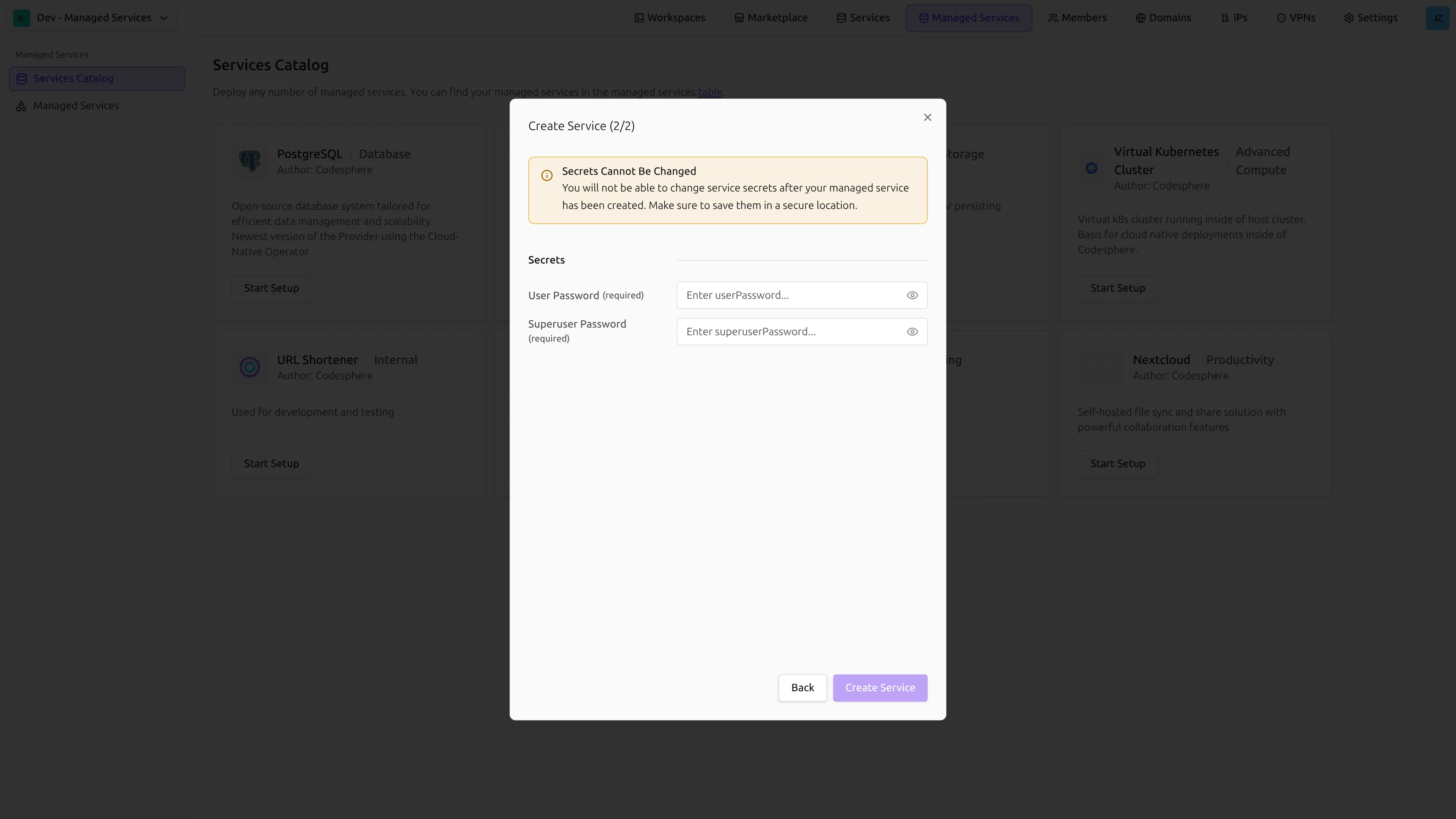
Secrets: Most services require secrets. Generate them on your machine and enter them here. Codesphere will not show you these secrets again after this step, so make sure to save them securely. If you lose them, you will need to reset the secrets which will cause downtime for the service. Click "Create Service" to proceed.
-
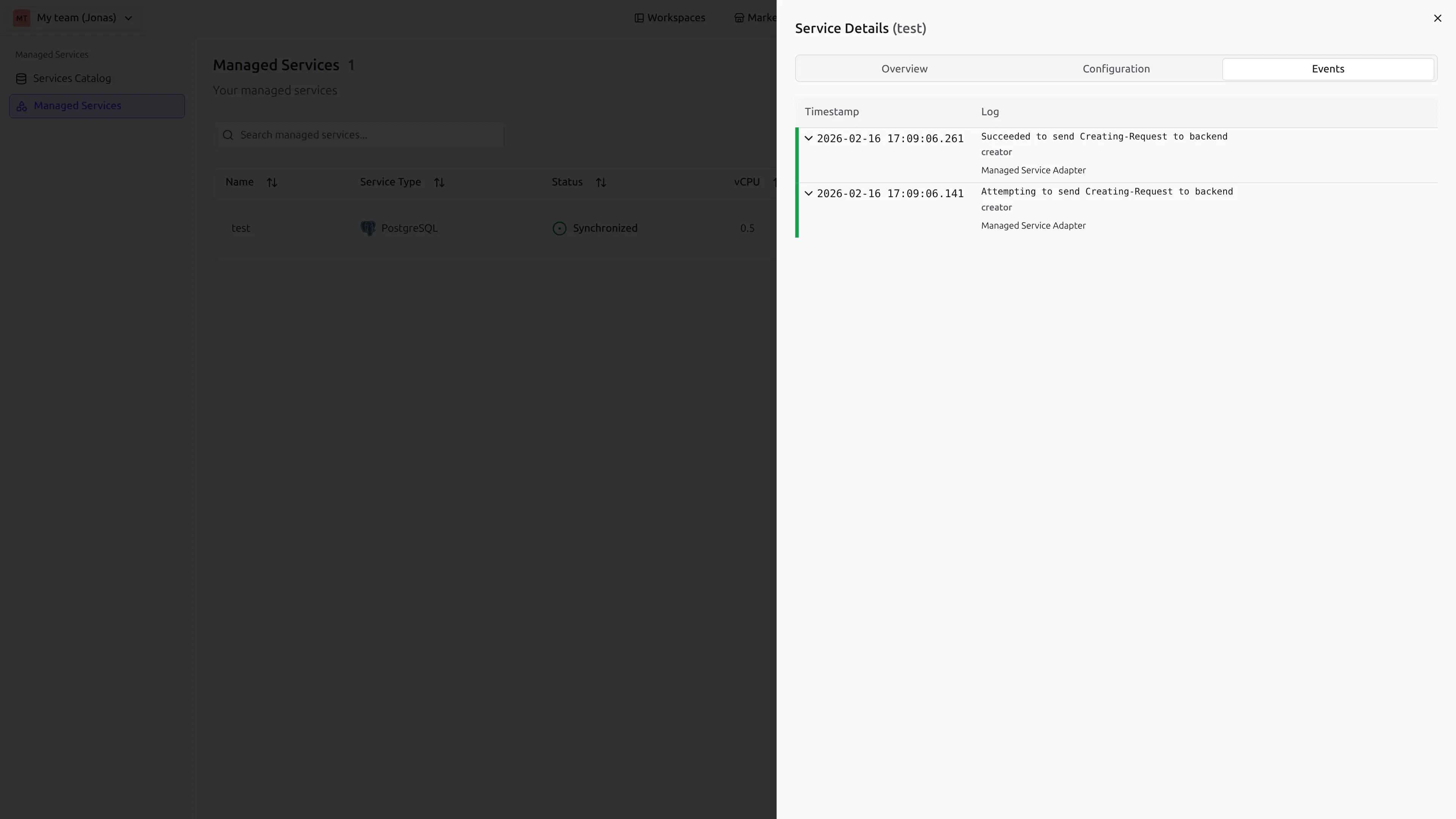
Deploy: After clicking "Deploy", Codesphere will begin provisioning the resources. Switch to the Managed Services tab in the left sidebar to monitor the progress. Status indicators will update as the service goes from
CreatingtoSynchronized.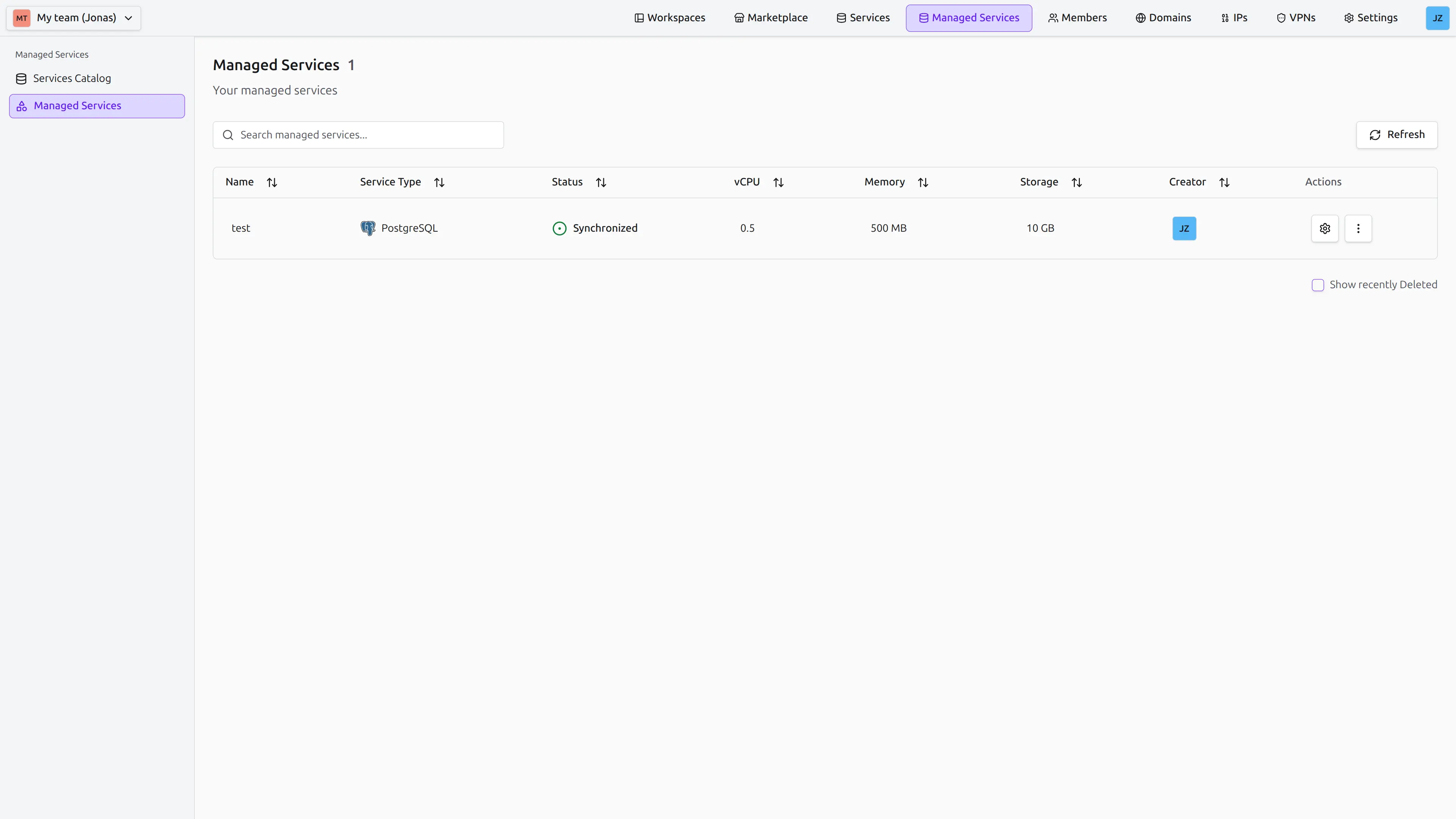 Use the events log to get more details on the provisioning process. If there are any issues during deployment, the events log will provide insights into what went wrong and how to fix it.
You can create a managed service using the POST /managed-services endpoint.
curl -X POST "<your-codesphere-instance-url>/api/managed-services" \
  -H "Authorization: Bearer YOUR_API_TOKEN" \
  -H "Content-Type: application/json" \
  -d '{
    "teamId": 123,
    "name": "my-postgres-db",
    "provider": {
      "name": "postgresql",
      "version": "v1"
    },
    "plan": {
      "id": 1,
      "parameters": {
        "storage": 512
      }
    },
    "config": {
      "version": "17.9"
    },
    "secrets": {
      "userPassword": "secure-password",
      "superuserPassword": "secure-password"
    },
    "backups": {
      "enabled": true,
      "intervalH": 24,
      "deleteRetentionDays": 7,
      "config": {
        "endpointUrl": "https://s3.eu-central-1.amazonaws.com",
        "destinationPath": "s3://my-codesphere-backups/",
        "accessKeyId": "YOUR_S3_ACCESS_KEY"
      },
      "secrets": {
        "secretKey": "YOUR_S3_SECRET_KEY"
      }
    }
  }'
Parameters:
teamId(integer, required): The ID of the team where the service will be created.name(string, required): A unique name for your service.provider(object, required):name: The name of the service provider (e.g.,postgresql,redis).version: The provider version tag (e.g.,v1).
plan(object, required):id: The plan ID.parameters: Plan-specific parameters (e.g., storage size in MiB).
secrets(object): Key-value pairs of secret service credentials.backups(object): Configure automated backups. For providers that support it. See the Managed Service Backups guide for details.recoverFrom(object): Automatically bootstrap the instance via a backup point in time object or a specific backup. Requiresbackupsconfig and secrets. See the Managed Service Backups guide.
Refer to the API Documentation for complete schema details.
API endpoints are available for all lifecycle operations including deployment, configuration updates, pausing, and deletion.
Deployment times vary by service. Complex databases may take a few minutes to become fully operational.
What's Next?
Once your service is up and running, proceed to the Managed Service Provider Reference to learn how to access that specific service from your workspace.
Update / Configure
You can modify the configuration of a running service to adapt to changing requirements.
- UI
- API
- Locate: Find the deployed service you want to update.
- Open Settings: Click on the gear icon in the right of the table row to open the service details view.
- Modify: Navigate to the Configuration tab and click Edit Configuration. This will enable editing configurable parameters. Note that not every option that was available in the creation-flow will be available for update. If you need to change a parameter that is not editable, you will need to delete and re-create the service with the desired configuration.
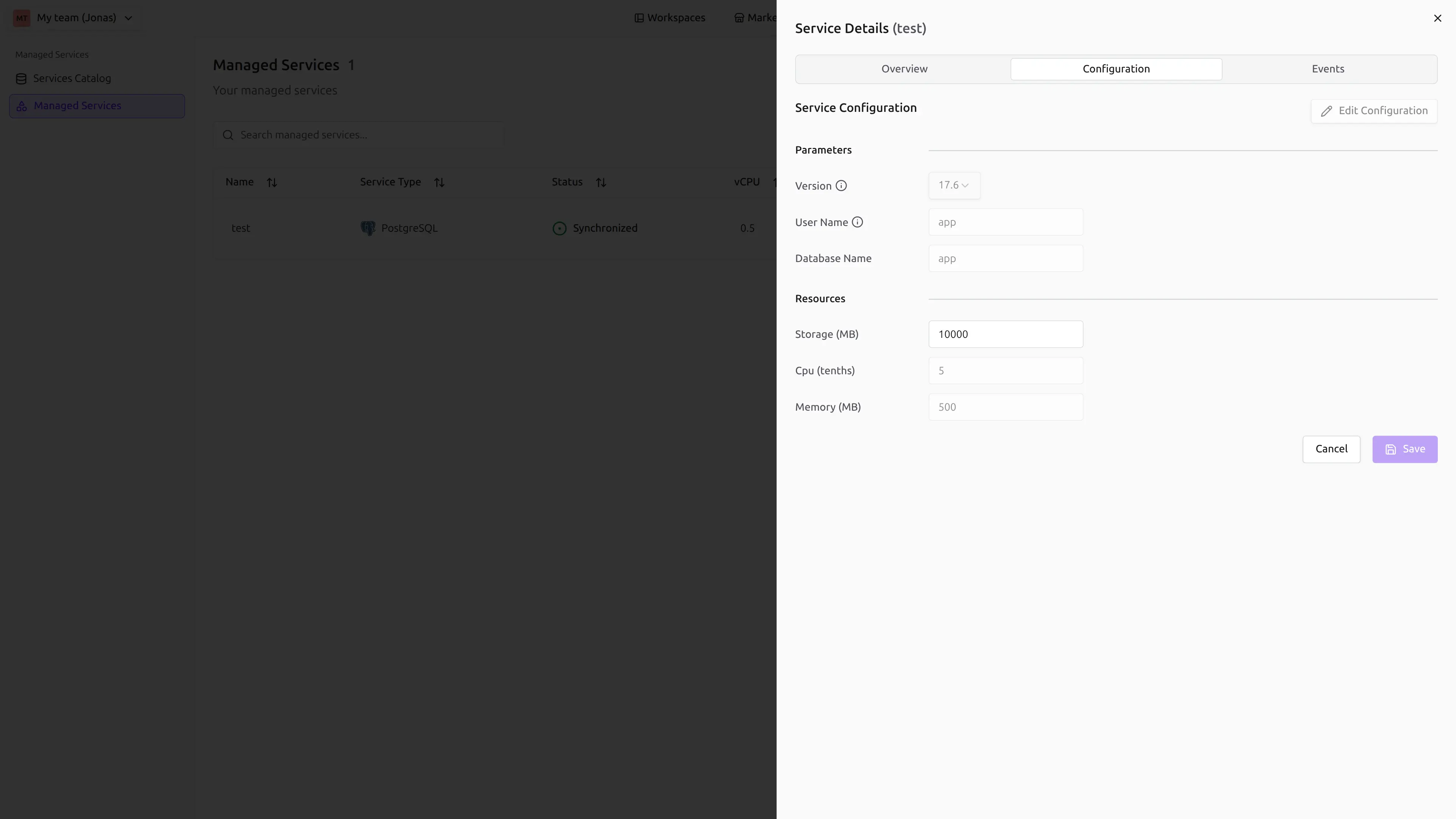
- Apply: Click Save to apply changes. The service Status will change from
SynchronizedtoUpdatingwhile the changes are being applied. Once complete, it will return toSynchronized. Check the event log for more details on the update process.
You can update a managed service using the PATCH /managed-services/{id} endpoint.
curl -X PATCH "<your-codesphere-instance-url>/api/managed-services/YOUR_SERVICE_ID" \
  -H "Authorization: Bearer YOUR_API_TOKEN" \
  -H "Content-Type: application/json" \
  -d '{
    "config": {
      "version": "17.9"
    },
    "plan": {
      "id": 1,
      "parameters": {
        "storage": 1024
      }
    },
    "secrets": {
      "userPassword": "new-secure-password",
      "superuserPassword": "new-secure-superuser-password"
    },
    "backups": {
      "enabled": true,
      "intervalH": 12,
      "deleteRetentionDays": 30,
      "config": {
        "endpointUrl": "https://s3.eu-central-1.amazonaws.com",
        "destinationPath": "s3://my-codesphere-backups/",
        "accessKeyId": "YOUR_S3_ACCESS_KEY"
      },
      "secrets": {
        "secretKey": "YOUR_S3_SECRET_KEY"
      }
    },
    "version": "v2"
  }'
Parameters:
id(string, path parameter): The UUID of the managed service to update.config(object, optional): Configuration updates.plan(object, optional):id: The new plan ID.parameters: Updated plan parameters (e.g., storage).
secrets(object, optional): Updated secrets.backups(object, optional): Automated backup configurations.name(string, optional): New name for the service.pause(boolean, optional): Set totrueto pause the service.version(string, optional): The new provider version tag (e.g.,v2). See the Upgrading to a New Version section for more details.
The supported config, plan.parameters, secrets, backup settings, and provider versions vary by service. See the Managed Service Provider Reference for the available fields, allowed values, defaults, and update constraints for each provider.
Refer to the API Documentation for complete schema details.
Some configuration updates may trigger a restart of the service, causing brief downtime.
Upgrading to a new Version
If an update request includes a change of the version parameter, this will trigger a version upgrade or downgrade. You can monitor its progress by looking at the event log of the managed service.
For REST-Based Providers, the upgrade process depends on the provider's specific implementation. On landscape-based-providers it always looks as follows:
1. Git Checkout
The controlled landscape does a git checkout of the git reference specified in the provider-definition for the new version. This could be a branch, commit-hash or a tag. The git-token of the user that triggered the update will be used to pull from the remote.
2. Restart
The CI/CD pipeline of the controlled landscape is restarted (stop all follwed by run all). The CI-profile specified in the provider-definition for the new version will be used. The service will be down during the duration of the restart.
There is no automatic rollback if the upgrade fails. Thoroughly test the managed service after performing the upgrade. If you notice issues, you can downgrade again by sending an update request with the previous version.
Pause
Codesphere allows you to pause certain managed services when they are not in active use. This is ideal for development environments or prototypes.
How it Works
Not every service supports pausing. If a service can be paused, you will see the option under the services capabilities. Capabilities can be viewed using the public API's GET providers endpoint.
- Pause: Takes the service offline and releases the compute resources (CPU & RAM). The service status changes to
PausedorStopped. - Resume: Re-provisions the compute resources and brings the service back online.
Landscapes will automatically pause their own services when they are torn down.
- UI
- API
Currently, pausing Managed Services is only supported via the Public API. Use the API tab for instructions.
You can pause a managed service by updating its pause property to true using the PATCH /managed-services/{id} endpoint.
Pause Service:
curl -X PATCH "<your-codesphere-instance-url>/api/managed-services/YOUR_SERVICE_ID" \
  -H "Authorization: Bearer YOUR_API_TOKEN" \
  -H "Content-Type: application/json" \
  -d '{
    "pause": true
  }'
Resume Service:
curl -X PATCH "<your-codesphere-instance-url>/api/managed-services/YOUR_SERVICE_ID" \
  -H "Authorization: Bearer YOUR_API_TOKEN" \
  -H "Content-Type: application/json" \
  -d '{
    "pause": false
  }'
Data Persistence
For Codesphere-managed services like Managed Storage or Object Store, your data stays safe during a pause. The persistent volume (disk) associated with the service is not deleted. When you resume the service, it re-attaches to the same volume, ensuring all your data is preserved.
This behavior currently applies to standalone managed services. For services integrated into landscape lifecycles or custom service providers, data persistence during pause depends on the specific implementation.
Pausing services that are not in use is a great way to optimize your resource usage and costs.
Backups
Codesphere supports automated backups and point-in-time recovery for specific managed service providers (such as PostgreSQL, Babelfish and Object Storage). This allows you to securely store your data in an external S3-compatible service.
For complete instructions on configuring automated backups, running manual backups, and recovering a service from a previous point in time or backup ID, please refer to the dedicated Managed Service Backups guide.
Delete Managed Services
Deleting a service calls the deletion endpoint of a Managed Service backend. For Managed Services offered by Codesphere, this removes any resources associated with said service.
When you trigger a deletion, Codesphere always starts with a soft delete. The service is marked with a deletedAt timestamp and enters the Deleting state.
Deletion Flow
- Soft delete: The service is marked with a
deletedAttimestamp. The service status changes toDeleting. - Final backup (if enabled): If the provider supports backups and backups are enabled for the service, the reconciler ensures there is a backup scheduled after delete initiation and waits for that backup to be confirmed before proceeding.
- Provider deletion: The reconciler sends the delete request to the provider backend, which removes compute resources and persistent data.
- Retention period: The soft-deleted service record remains visible for a retention period and is later hard-deleted by the cleanup process. During this window, you can still see the service by checking "Show recently Deleted" in the service table.
- UI
- API
- Navigate: Go to the service table page.
- Delete: Find the "Delete" button under the 3-dots menu.
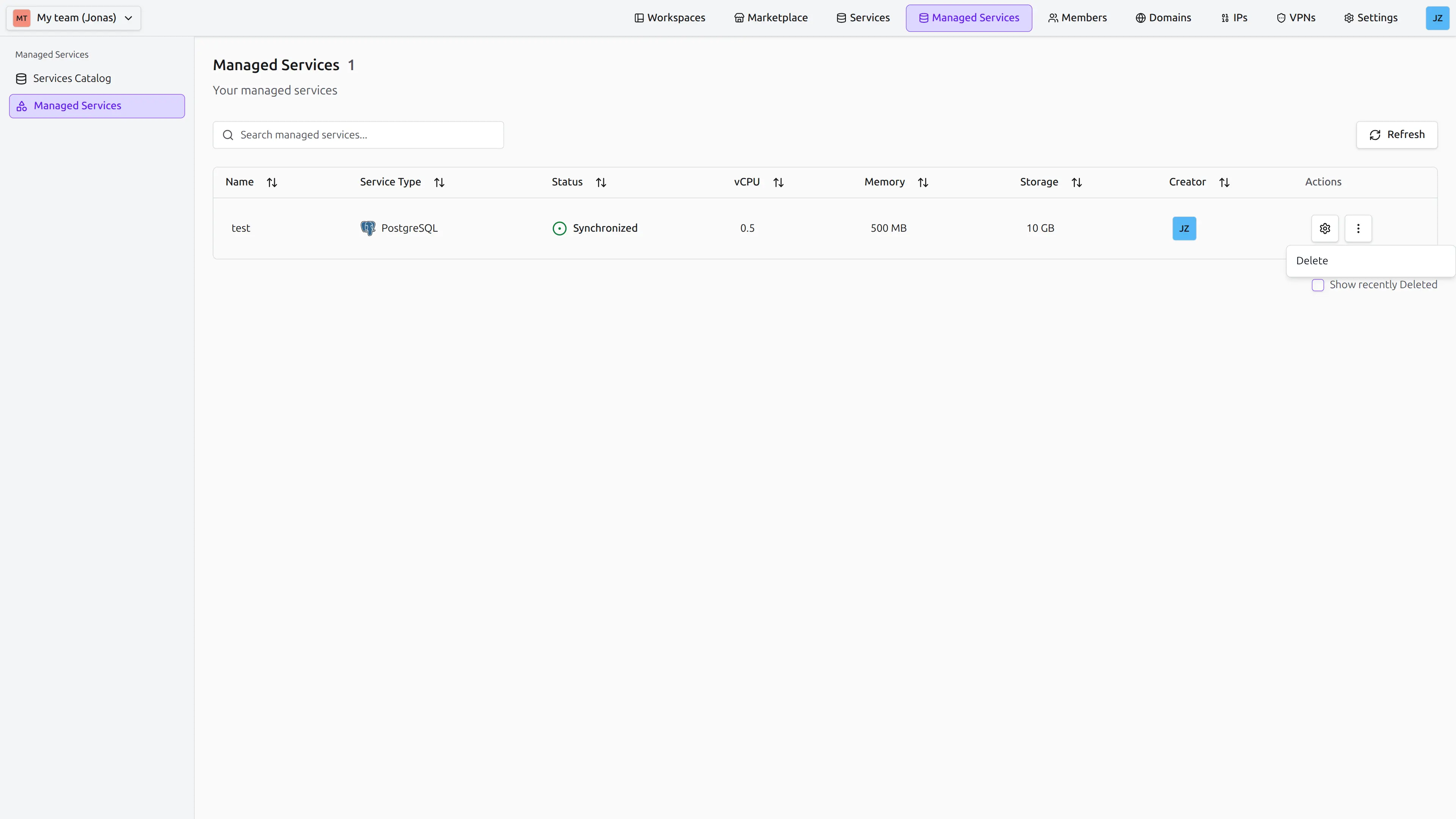
- Confirm: You will be asked to confirm the action, by typing the name of the service.
You can delete a managed service using the DELETE /managed-services/{id} endpoint.
curl -X DELETE "<your-codesphere-instance-url>/api/managed-services/YOUR_SERVICE_ID" \
  -H "Authorization: Bearer YOUR_API_TOKEN"
To skip the final backup step and proceed immediately to provider deletion, pass forceDelete: true in the request body:
curl -X DELETE "<your-codesphere-instance-url>/api/managed-services/YOUR_SERVICE_ID" \
  -H "Authorization: Bearer YOUR_API_TOKEN" \
  -H "Content-Type: application/json" \
  -d '{"forceDelete": true}'
Parameters:
id(string, path parameter): The UUID of the managed service to delete.forceDelete(boolean, optional): Whentrue, skips the final backup wait and proceeds directly with provider deletion. Defaults tofalse(normal deletion flow).
Refer to the API Documentation for complete schema details.
Deleting a managed service is permanent. It removes both the compute resources and the persistent data volume. This action cannot be undone. You can see recently deleted services by checking the "Show recently Deleted" checkbox, but they cannot be recovered.
Force delete
If a service is stuck in the Deleting state because the final backup is not succeeding (you can check this in the Event Log), you can use Force Delete to bypass waiting for the final backup and remove the service record immediately.
To force-delete a service via the UI:
- Open the "Delete" menu item for the stuck service.
- In the confirmation dialog, check the "Force Delete" checkbox.
- Type the service name to confirm, then click Delete.
Force Delete bypasses data safety checks and will result in permanent data loss. Any data not already backed up will be unrecoverable. Only use this option when the standard deletion flow has failed and you accept the risk of data loss.