Creating an Organization Team
This guide walks you through the process of creating a new Team directly within an existing Organization using the Codesphere user interface. By creating a team directly under an Organization, you ensure that it is immediately governed by your centralized access controls.
Scenario Overview
You are an Organization Admin and want to spin up a new collaborative workspace for a specific project group. You will use the Codesphere Dashboard to create the new team, assign its geographic datacenter, and verify its creation.
Access Organization Settings
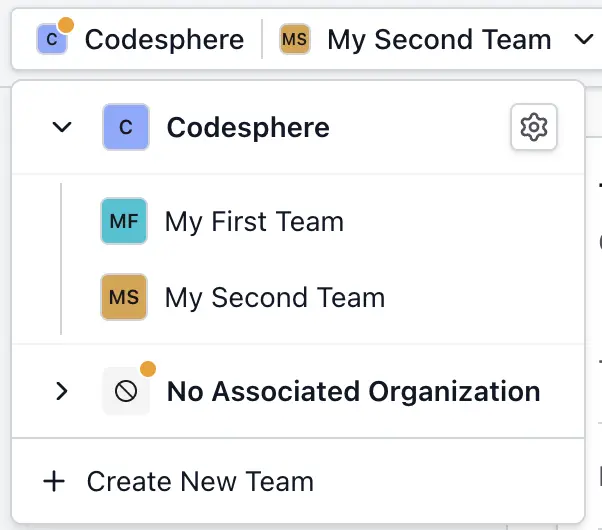
- Look at the top-left corner of the Codesphere UI and open the Organization and Team Selector dropdown.
- In this menu, Organizations are represented by folder icons. Locate the Organization where you want to create the new team.
- Click the small Settings icon (gear icon) next to the Organization name.
Initiate Team Creation
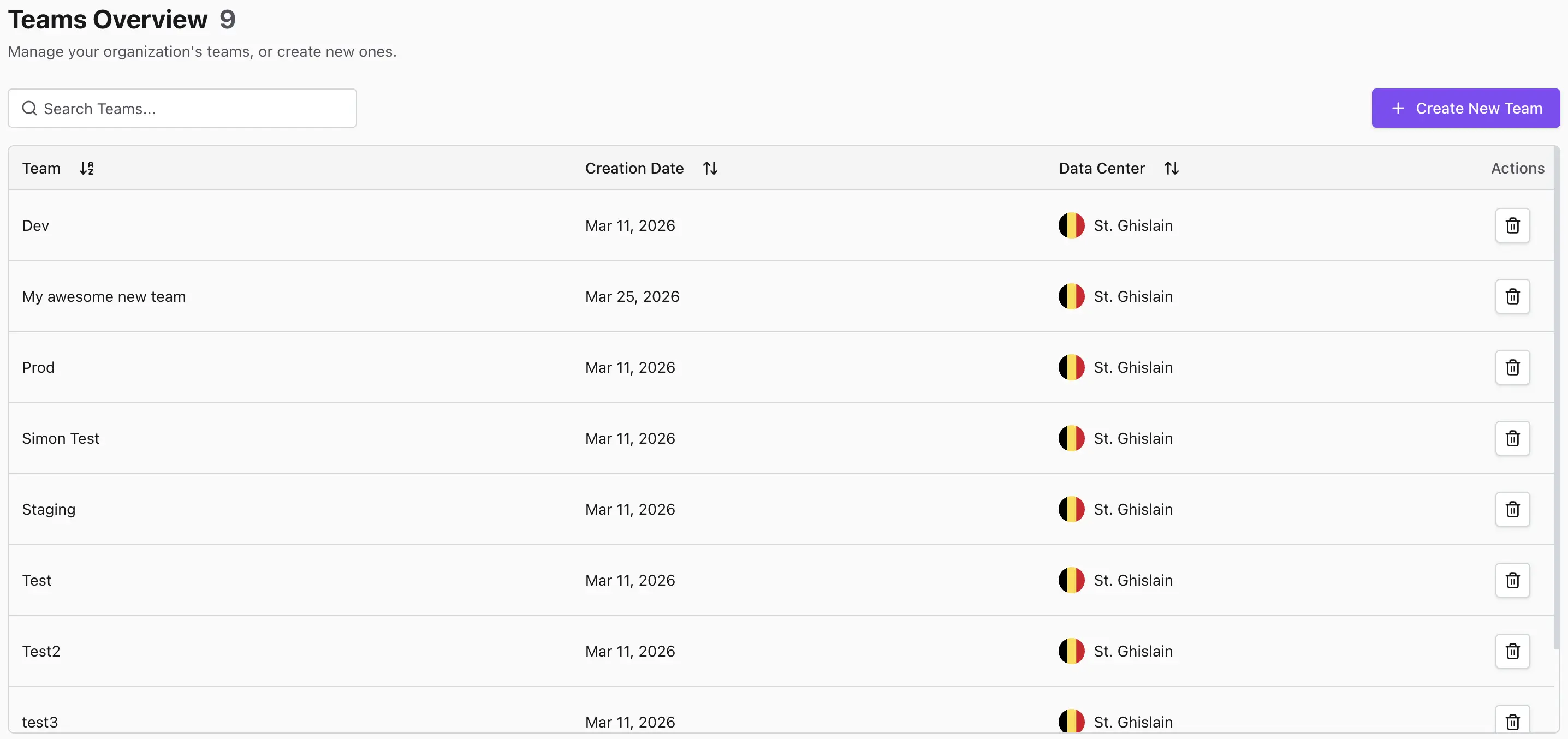
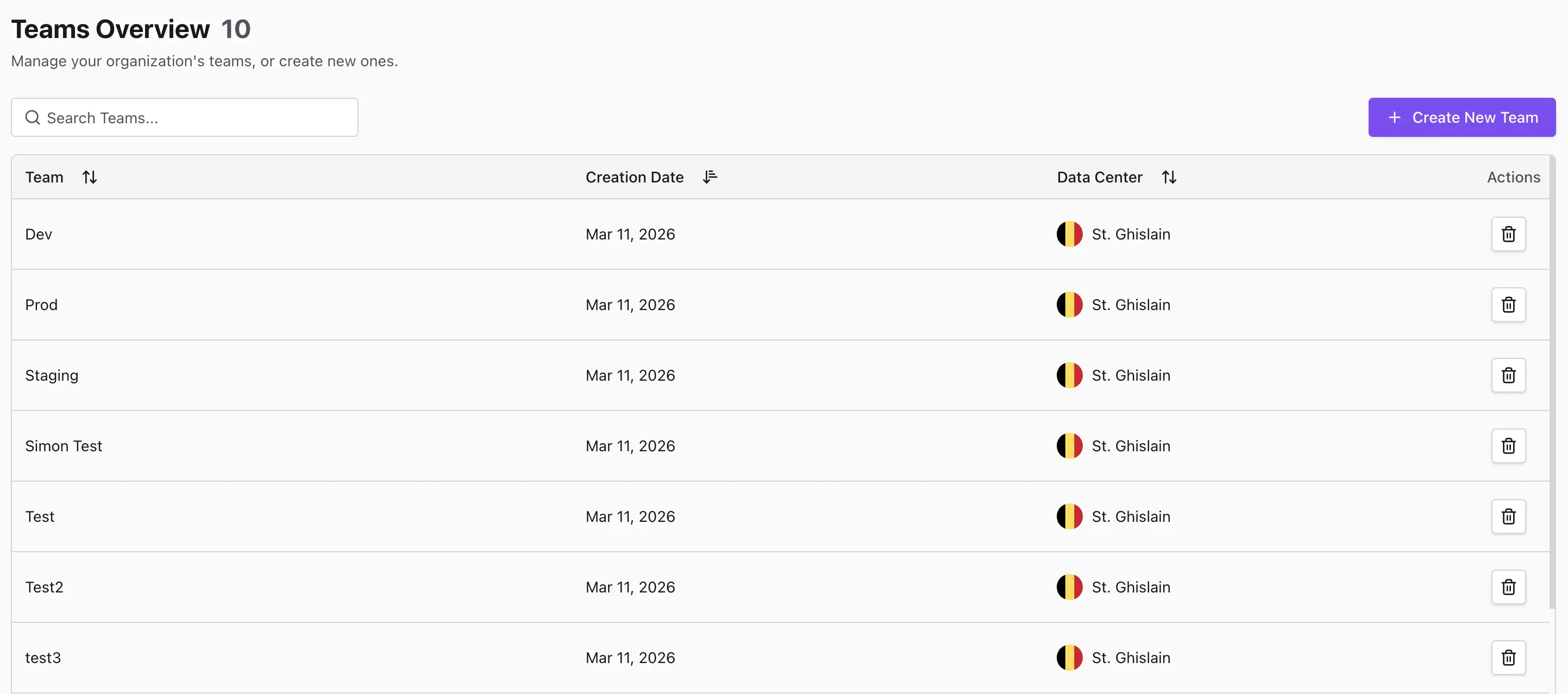
Clicking the settings icon takes you to the organization's management view, specifically the Teams Table, which lists all currently associated teams.
- Look at the top right of the Teams Table.
- Click the Create New Team button.
Configure the New Team
A "Create Team" dialog will appear on your screen, prompting you for the foundational details of the new team.
- Team Name: Enter a descriptive name for your new team.
- Default Datacenter: Select the geographic region where this team's workloads and data should be hosted (important for data sovereignty and latency).
- Click the Create button to confirm and provision the team.
Verify Team Creation
Once the provisioning is complete, the dialog will close automatically.
- Review the Teams Table on your screen.
- The newly created team will now be immediately visible in the list of teams belonging to your organization.