OIDC Role Mapping
OIDC role mapping grants Organization and Resource Group roles
based on the claims your identity provider puts into the ID token. You decide
which claim values grant which roles. For example, you can make every user in
an IdP group called engineering a Member of your Organization and an Admin of
selected Resource Groups.
OIDC role mapping requires a configured OIDC identity provider. Contact Codesphere to enable it on your installation.
How it works
Two kinds of mappings work together.
| Mapping | Managed by | Maps | Purpose |
|---|---|---|---|
| Org mapping | Cluster admin | Claim → Organization | Decides which Organization's role mappings apply to a token |
| Role mapping | Organization Owner | Claim → role on the Organization or one of its Resource Groups | Grants the actual roles |
On every OIDC sign-in, Codesphere runs these steps:
- Reads the claims of the signed ID token and turns them into key/value pairs.
- Finds the org mappings whose key and value appear in the token. This yields a set of Organizations.
- Loads the role mappings of those Organizations and keeps the ones whose key and value appear in the token.
- Grants the matching roles to the user.
An org mapping grants nothing by itself. It only unlocks the role mappings of one Organization. To make a user a member, that Organization also needs a role mapping with the resource type Organization.
Claims become key/value pairs
Codesphere flattens the ID token before matching. Take this token:
{
"groups": ["engineering", "platform"],
"realm_access": { "roles": ["developer"] },
"tier": 3
}
It produces these pairs:
| Claim key | Claim value |
|---|---|
email | [email protected] |
groups | engineering |
groups | platform |
realm_access.roles | developer |
tier | 3 |
- Every element of an array becomes its own pair.
- Nested objects are joined with dots, for example
realm_access.roles. - Numbers and booleans are compared as strings.
- Empty strings and
nullvalues are dropped.
Codesphere matches claims from the signed ID token only. A claim that your IdP returns from the userinfo endpoint but not in the ID token is ignored. Configure your IdP to put the claim into the ID token, see Configure your identity provider.
Matching is exact and case-sensitive on both key and value. Engineering does
not match engineering, and there is no wildcard or prefix matching.
Map claims to an Organization
Org mappings are cluster-wide and can only be managed by a cluster admin through the Public API. There is no UI for them.
Manage org mappings through the Public API
All requests need an API token in the Authorization header, see
Public API.
Create an org mapping
curl -X POST "https://<base-domain>/api/clusters/organizations/idp-mappings" \
  -H "Authorization: Bearer $CS_TOKEN" \
  -H "Content-Type: application/json" \
  -d '{
    "claimKey": "groups",
    "claimValue": "engineering",
    "organizationId": "<organization-id>"
  }'
| Field | Description |
|---|---|
claimKey | Flattened claim key, for example groups or realm_access.roles |
claimValue | Exact value the claim must contain |
organizationId | UUID of an existing Organization |
Errors:
NotFoundif the Organization does not exist.AlreadyExistsif the claim pair is already mapped to an Organization.InvalidArgumentif a field is empty ororganizationIdis not a UUID.
A claim pair can point to only one Organization. Several claim pairs can point to the same Organization.
List org mappings
curl "https://<base-domain>/api/clusters/organizations/idp-mappings" \
  -H "Authorization: Bearer $CS_TOKEN"
The response lists every mapping, newest first:
[
  {
    "claimKey": "groups",
    "claimValue": "engineering",
    "organizationId": "<organization-id>",
    "createdAt": "2026-10-13T09:00:00.000Z"
  }
]
Delete an org mapping
curl -X DELETE "https://<base-domain>/api/clusters/organizations/idp-mappings" \
  -H "Authorization: Bearer $CS_TOKEN" \
  -H "Content-Type: application/json" \
  -d '{"claimKey": "groups", "claimValue": "engineering"}'
Deleting a mapping that does not exist succeeds.
To point a claim pair at a different Organization, delete the mapping and create it again.
Deleting an Organization also deletes its org mappings and role mappings.
Map claims to roles
Organization Owners manage role mappings for their own Organization. A role mapping grants one of these roles:
| Resource type | Roles |
|---|---|
| Organization | Owner, Member |
| Resource Group | Admin, Member |
A Resource Group role only applies if the user is already a member of the Organization. Map the same claim to an Organization role too, unless all users with that claim are already members.
- UI
- API
-
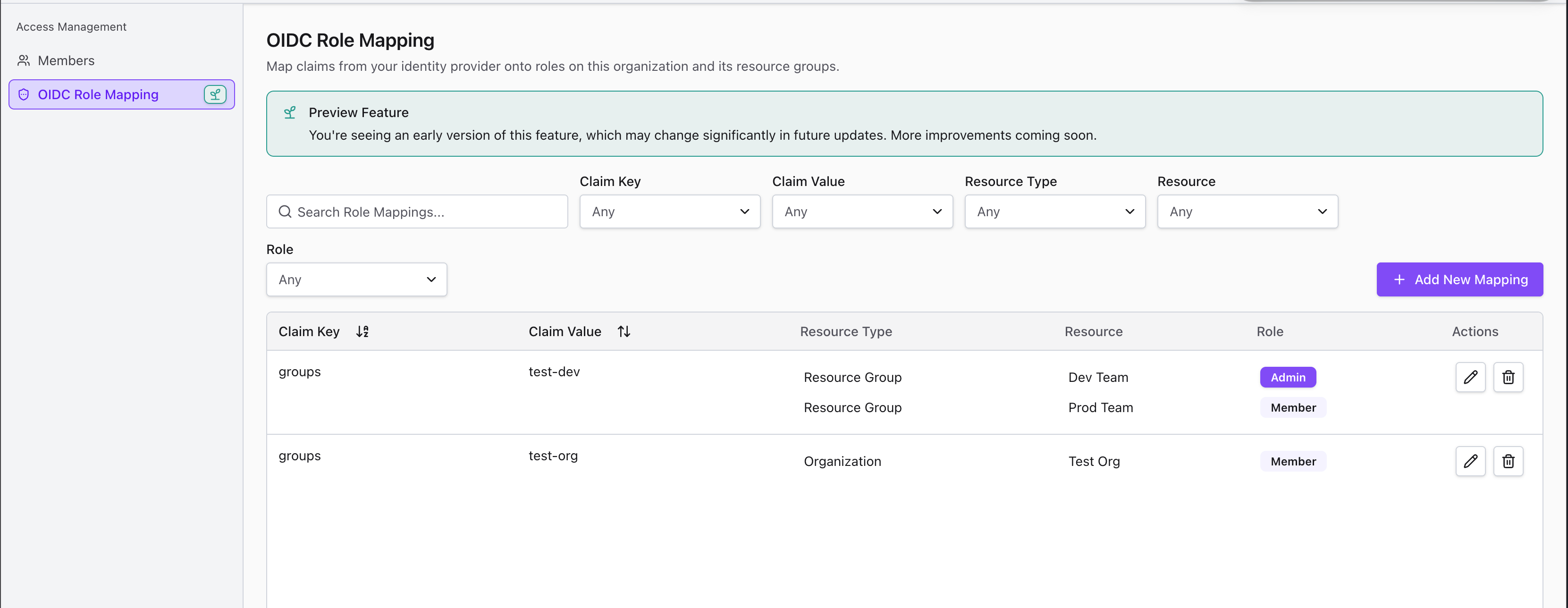
Open your Organization and go to Access Management → OIDC Role Mapping. Only Organization Owners see this page.
-
Click Add New Mapping.
-
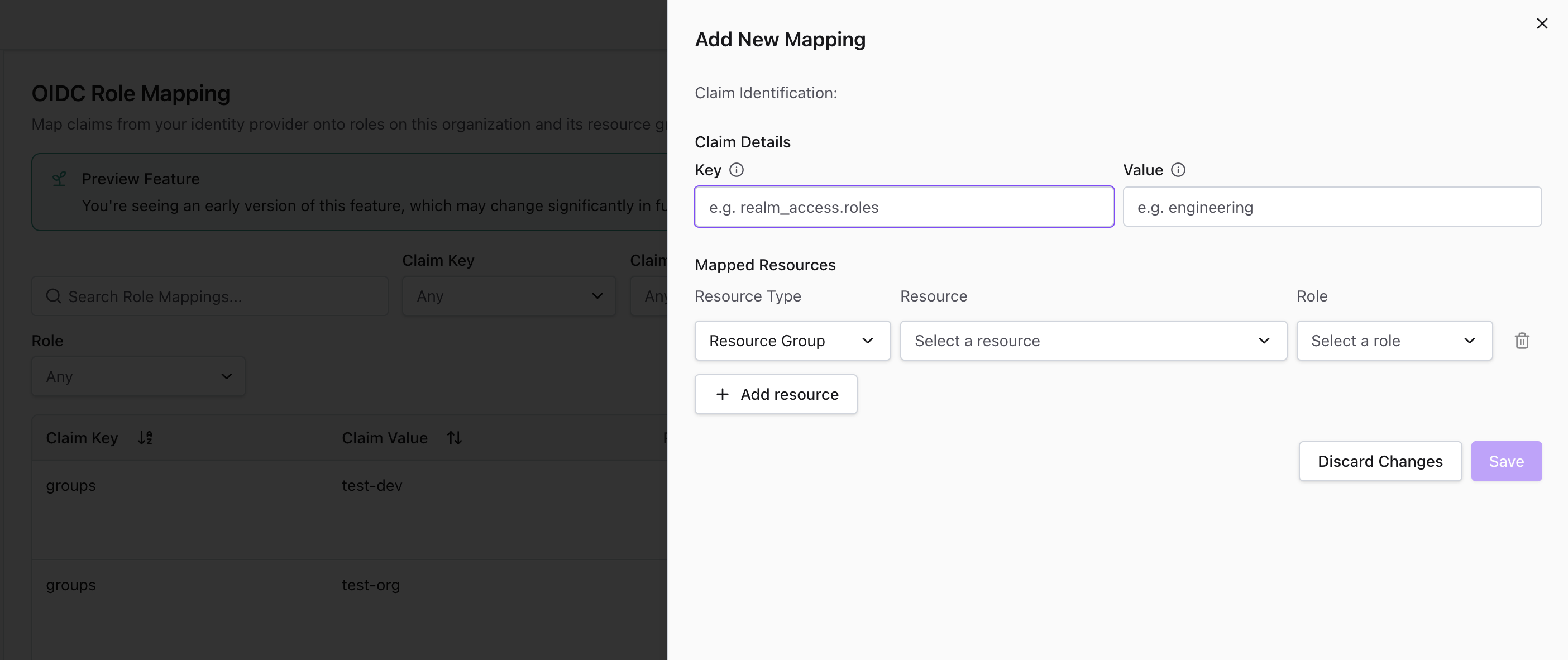
Under Claim Details, enter the claim Key (for example
groups) and the Value (for exampleengineering). Use dots for nested claims, for examplerealm_access.roles. -
Under Mapped Resources, pick the Resource Type, the Resource, and the Role.
-
Click Add resource to grant more roles for the same claim. Each resource can get only one role per claim.
-
Click Save.
If a mapping for the claim already exists, the new lines are added to it. To change or remove a mapping, use the edit and delete actions in the Actions column of the table.
All endpoints require an API token of an Organization Owner. Other users receive
NotAuthorized.
Create a role mapping
curl -X POST "https://<base-domain>/api/organizations/<organization-id>/oidc-role-mappings" \
  -H "Authorization: Bearer $CS_TOKEN" \
  -H "Content-Type: application/json" \
  -d '{
    "claimKey": "groups",
    "claimValue": "engineering",
    "resourceType": "resource_group",
    "resourceId": "42",
    "relation": "admin"
  }'
| Field | Description |
|---|---|
claimKey | Flattened claim key |
claimValue | Exact value the claim must contain |
resourceType | organization or resource_group |
resourceId | The Organization ID for organization, the numeric Resource Group ID for resource_group |
relation | owner or member for organization. admin or member for resource_group |
Creating a mapping that already exists has no effect. InvalidArgument is
returned if:
- The relation does not fit the resource type.
- The resource does not exist or belongs to another Organization.
- A field is empty.
List role mappings
curl "https://<base-domain>/api/organizations/<organization-id>/oidc-role-mappings" \
  -H "Authorization: Bearer $CS_TOKEN"
Delete a role mapping
Send the same body you used to create it:
curl -X DELETE "https://<base-domain>/api/organizations/<organization-id>/oidc-role-mappings" \
  -H "Authorization: Bearer $CS_TOKEN" \
  -H "Content-Type: application/json" \
  -d '{
    "claimKey": "groups",
    "claimValue": "engineering",
    "resourceType": "resource_group",
    "resourceId": "42",
    "relation": "admin"
  }'
Deleting a mapping that does not exist succeeds.
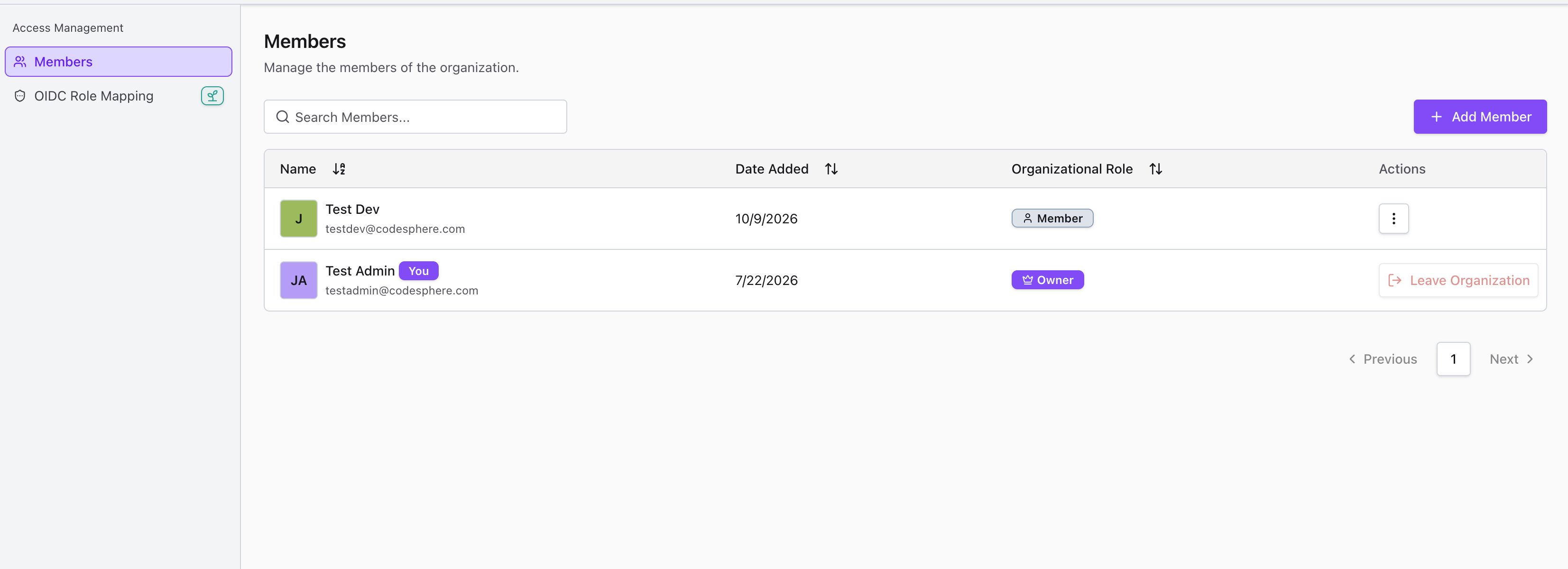
Role mappings only add access. Deleting a mapping, or removing a user from the group in your IdP, does not remove roles that were already granted. Remove the user on the Organization's or Resource Group's Members page.
Configure your identity provider
Your IdP must put the claim you map on into the ID token. Use the redirect URI
https://<base-domain>/ide for the Codesphere client.
- authentik
- Keycloak
authentik puts a user's group names into the groups claim through its default
profile scope mapping.
- Go to Applications → Providers and create an OAuth2/OpenID Provider.
- Set Client type to Confidential.
- Add
https://<base-domain>/ideas a Redirect URI. - Under Advanced protocol settings, check that Scopes contains the default
openid,email, andprofilemappings. - Make sure Include claims in id_token is enabled. Without it,
groupsonly appears in the userinfo response and Codesphere ignores it. - Go to Applications → Applications, create an application, and select the provider.
- Copy the Client ID, the Client Secret, and the OpenID Configuration Issuer from the provider page. The issuer has the form
https://<authentik-host>/application/o/<application-slug>/. - Go to Directory → Groups and add users to groups, for example
engineering.
The ID token then contains:
{
  "groups": ["engineering"]
}
Map on groups = engineering. The value is the group name exactly as shown in
authentik.
Keycloak can provide groups or roles. Neither is in the ID token by default.
- In your realm, go to Clients and create an OpenID Connect client, for example
codesphere. - Enable Client authentication and the Standard flow.
- Add
https://<base-domain>/ideto Valid redirect URIs. - Copy the client secret from the Credentials tab. The issuer URL is
https://<keycloak-host>/realms/<realm>.
Then add the claim you want to map on.
Groups
- Open the client, go to Client scopes, and select
<client-id>-dedicated, for examplecodesphere-dedicated. - Click Configure a new mapper (or Add mapper → By configuration) and pick Group Membership.
- Set Token Claim Name to
groups. - Turn Full group path off. Otherwise values carry a leading slash and the parent path, for example
/engineering. - Turn Add to ID token on.
Map on groups = engineering.
Realm or client roles
- Go to Client scopes → roles → Mappers.
- Open realm roles and turn Add to ID token on. Do the same for client roles if you map client roles.
Realm roles arrive as realm_access.roles. Client roles arrive as
resource_access.<client-id>.roles. Map on realm_access.roles = developer,
for example.
Check the token
Open the client, go to Client scopes → Evaluate, select a user, and open Generated ID token. The claim you map on must appear there.
Enter the issuer URL, client ID, and client secret in your installation as described in Identity providers.
Example
Members of the IdP group dev should join the Organization Rolemapping Organization
as Members, become Admins of the Resource Group Dev, and Members of the Resource
Group QA.
Adding a role mapping for the IdP group dev.
- The cluster admin creates an org mapping
groups=dev→Rolemapping Organization. - An Owner of
Rolemapping Organizationcreates a role mapping forgroups=devwith three lines:- Resource Type Organization, Resource
Rolemapping Organization, Role Member - Resource Type Resource Group, Resource
Dev, Role Admin - Resource Type Resource Group, Resource
QA, Role Member
- Resource Type Organization, Resource
- A user in
devsigns in through OIDC. They become a Member ofRolemapping Organization, an Admin ofDev, and a Member ofQA.
Behavior and limitations
- Applied on every sign-in. Mappings are evaluated each time a user signs in through OIDC. Changes to mappings take effect on the next sign-in.
- Additive only. Mappings add roles or raise them. They never remove or lower a role, even if the claim disappears or the mapping is deleted. This lets you introduce mappings next to existing manual memberships without anyone losing access. Removing roles when a claim disappears is planned for a later release.
- Highest role wins. If several mappings grant roles on the same resource, the user gets the highest one.
- Sign-in is never blocked. If applying the mappings fails or takes longer than 5 seconds, the user still signs in. Roles that were not applied are granted on a later sign-in.
- Existing resources only. Mappings never create Organizations or Resource Groups.
- Workspace roles are not supported. Map Organization and Resource Group roles. Workspace roles follow from the inheritance rules.
- Claim limit. Only the first 512 key/value pairs of a token are matched.
Troubleshooting
A user signs in but gets no roles
- Check that the claim is in the ID token, not only in the userinfo response.
- Compare key and value character by character. Matching is case-sensitive.
- In Keycloak, check whether Full group path adds a leading
/to group names. - Check that an org mapping exists for one of the user's claims. Role mappings of an Organization without a matching org mapping are ignored.
The Organization role works but the Resource Group role does not
The user must be a member of the Organization before a Resource Group role can apply. Add an Organization role line to the same mapping.
A user keeps access after leaving the group
This is expected. Remove the user manually on the Members page.