Virtual Machines
Virtual Machines let you deploy a full Linux or Windows VM alongside your containerized workloads in a Codesphere workspace. Unlike a reactive container, a VM gives you full operating system and administrator access, with configurable CPU, memory, and storage, and internal networking to the rest of your landscape.
Virtual Machines are gated behind the virtual-machines flag. The feature must be enabled for your installation before VMs appear in the Landscape Config Editor.
Codesphere runs VMs with KubeVirt on top of Kubernetes.
Lifecycle
A VM's lifetime is tied to its landscape. The VM is created when the landscape is deployed and deleted when the landscape is torn down, along with all changes made inside the guest. Redeploying the landscape starts a fresh VM from the configured image. The previous VM's state is not preserved.
Images
Codesphere VM
support QCOW2 and raw disk images, sourced from either a container registry (docker://) or an S3-compatible bucket (s3://).
Disk images from a container registry must be containerdisk images. A containerdisk packages a VM disk inside a container image and distributes it through a container registry.
To use an S3-compatible bucket, set the image field to an s3:// URL for the object. S3 sources need a resource group container registry configured for the URL, the same credentials used for private container images. This applies even to public buckets. For a container registry, the Username and Password/access token fields hold the registry username and password. For an S3 source, use them for the access key ID and secret access key instead.
Windows VMs
Windows guests need VirtIO network drivers installed inside the guest to get network access. The VM's network interface is virtio-net exposed through masquerade, and Windows does not ship a driver for it out of the box.
- Hyper-V enlightenments (relaxed, VAPIC, spinlocks) are enabled to improve Windows guest performance. These improve performance but do not replace the VirtIO network driver.
- The disk bus is SATA (not VirtIO), so no VirtIO storage driver is required. The network driver is still needed.
If a Windows VM boots without network connectivity, the missing VirtIO network driver is the most likely cause.
How to add a Virtual Machine
You configure Virtual Machines from the Landscape Config Editor in the CI & Deploy section.
-
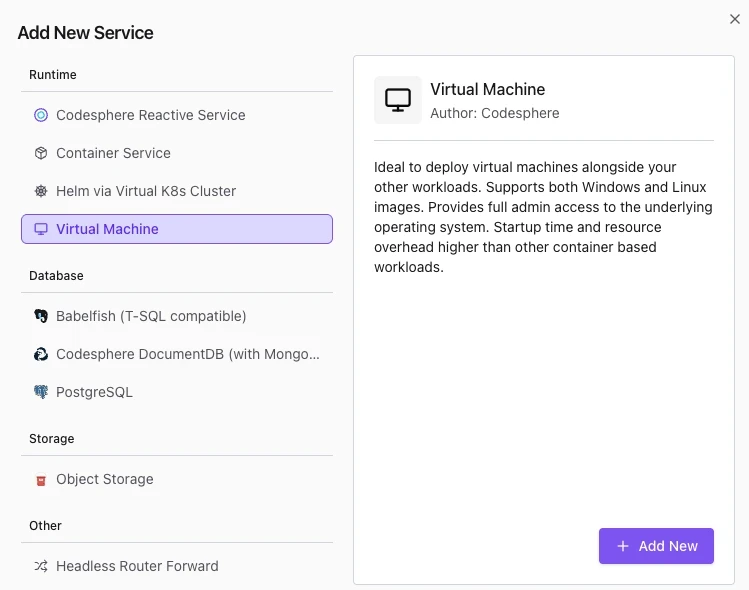
Click the + Add New Service button on the right side of the Landscape Deployment section and select Virtual Machine as the service type.
-
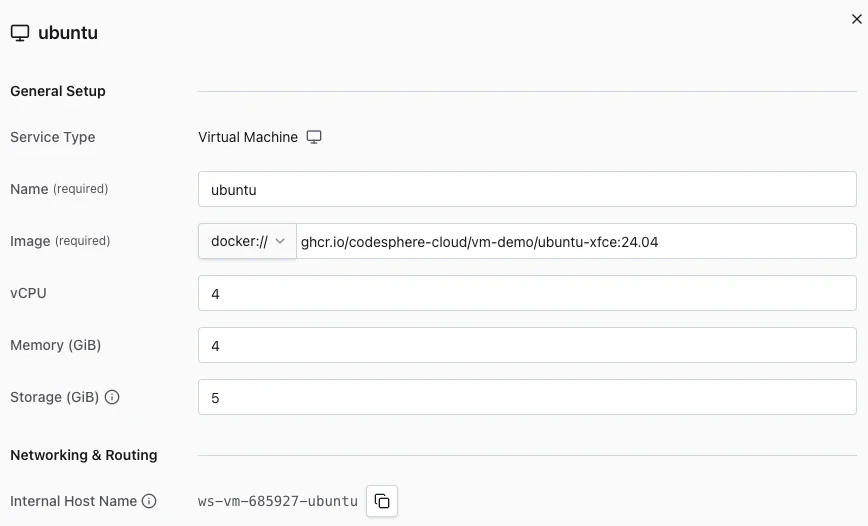
Configure the VM. Set the VM name, the disk image, and the compute resources.
-
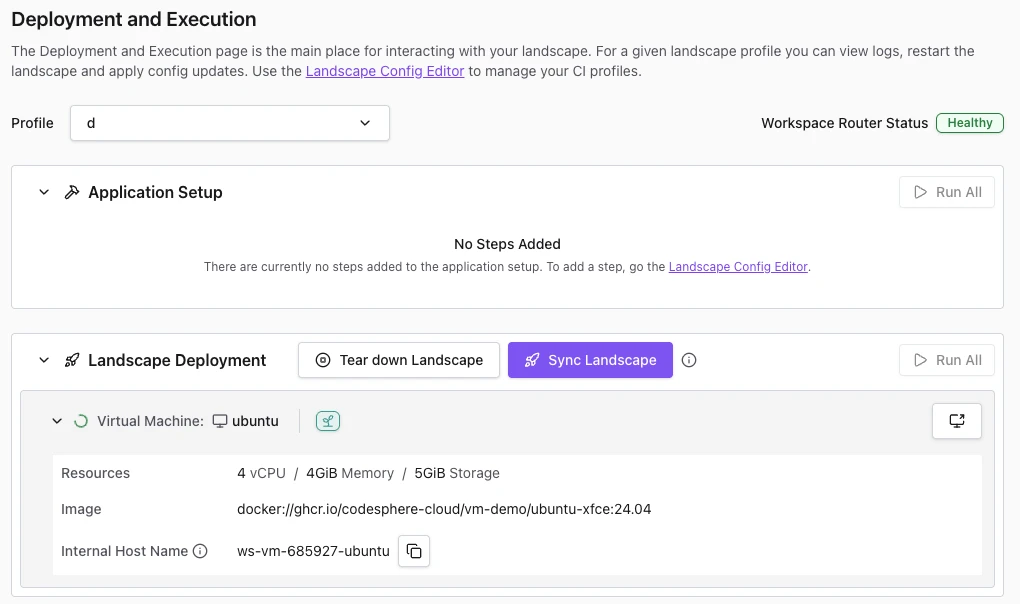
Save and sync the landscape. After deployment, the VM appears with the other deployed services.
Demo image
You can try the feature with the following ready-made demo containerdisk. It ships with a preconfigured login.
Ubuntu 24.04 (XFCE desktop)
- Image:
docker://ghcr.io/codesphere-cloud/vm-demo/ubuntu-xfce:24.04 - Minimum resources: 1 CPU, 1 GiB memory, 5 GiB storage
- Ubuntu Login Username:
codesphere - Ubuntu Login Password:
codesphere
Windows Server 2022 (Desktop Experience, evaluation)
- Image:
docker://ghcr.io/codesphere-cloud/vm-demo/windows-server:2022 - Minimum resources: 2 CPU, 4 GiB memory, 15 GiB storage
- Windows Login Username:
codesphere - Windows Login Password:
SphereCode!
VM access
You can open an interactive window to a running VM directly from the UI using the VNC button on the deployed Virtual Machine. This gives you a graphical session into the guest. It is useful for initial setup, troubleshooting, or working with VMs that have no other network access yet.
The VNC session supports a single connection at a time. A second user initiating a VNC session will cause the first connection to be dropped.
Networking
- Internal networking: Each VM is exposed through an internal hostname of the form
ws-vm-{workspaceId}-{vmName}.workspaces.svc.cluster.local. Other services in the same workspace can reach the VM at this address, or at the short namews-vm-{workspaceId}-{vmName}from within the same workspace. - Outbound access: Networking uses pod masquerade (NAT), so VMs can reach the internet and other workspace services.
To expose an HTTP or HTTPS endpoint running on a VM publicly, add a custom target to the Workspace Router that forwards a public path to the VM's internal hostname.
Console access
A text based serial console to the VM is planned for a future release. For now, use the graphical VNC console described under VM access.
Exporting VM images
Exporting a running VM back into a container image is planned for a future release. This will let you capture a configured VM and reuse it as a new base image.