Git & Source Control
Codesphere has integrated source control management (SCM) with out-of-the-box support for the most common Git providers, including GitHub, Bitbucket, Azure DevOps, and GitLab. Depending on your Codesphere installation, additional Git providers may be available.
Prerequisite: Connect Your Git Provider
To use Git features, you must first connect your Git provider. Navigate to Git Permissions by clicking your avatar in the top-right corner and selecting "Git Permissions".
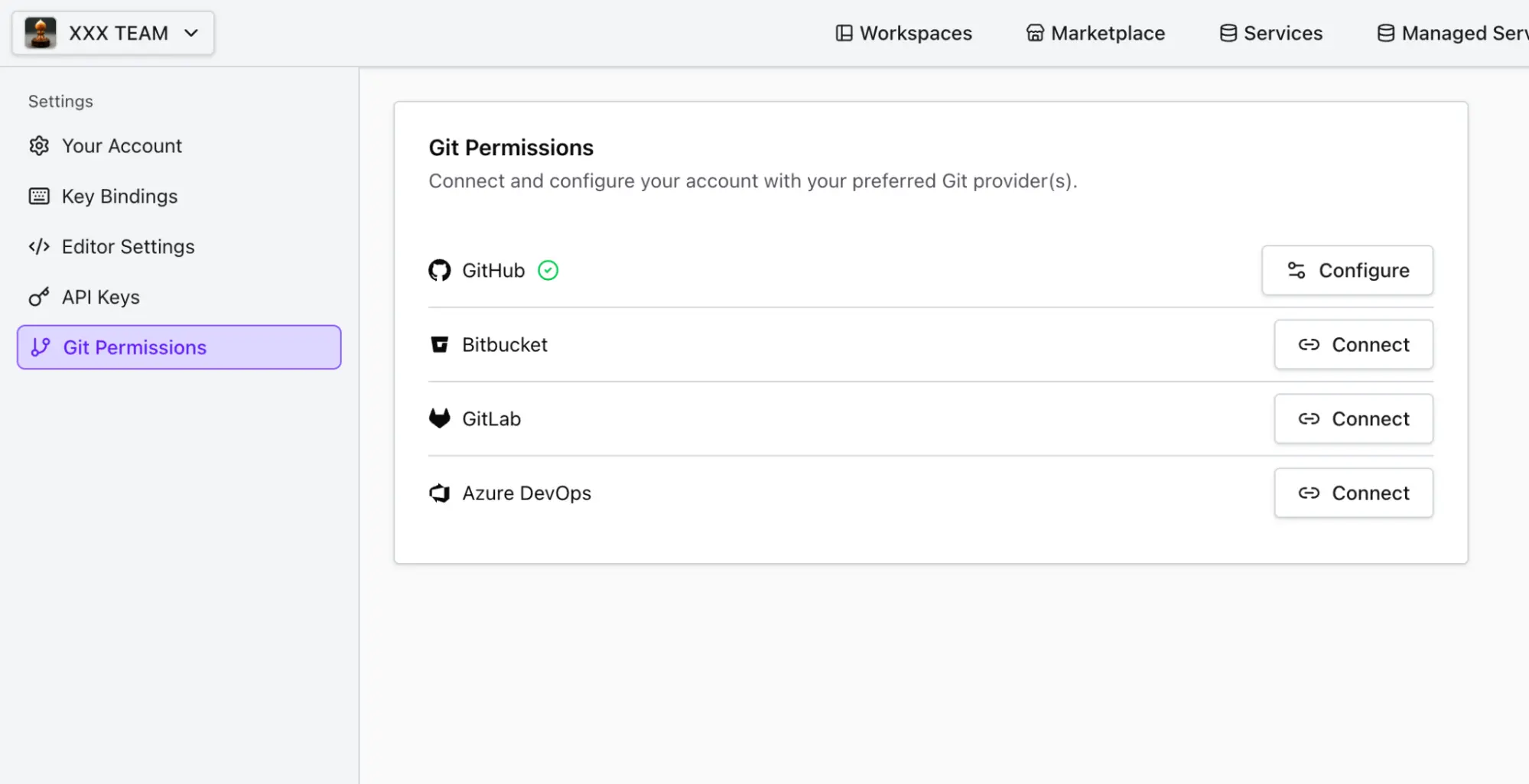
Once configured, your Git providers will be fully integrated across all your Codesphere workspaces.
Git in the File Tree
Codesphere automatically detects Git repositories when you open a folder. Any changes you make are reflected in the file tree with standard annotations: A (Added), M (Modified), D (Deleted).

Deleted files
Deleted files are removed from the file tree but remain visible in the Git Panel under CHANGES until they are staged and committed. This allows you to review and stage deletions before committing them.
The Git Panel
Access the Git panel by clicking the Git icon in the left sidebar. This panel lets you perform common Git operations without leaving the UI.
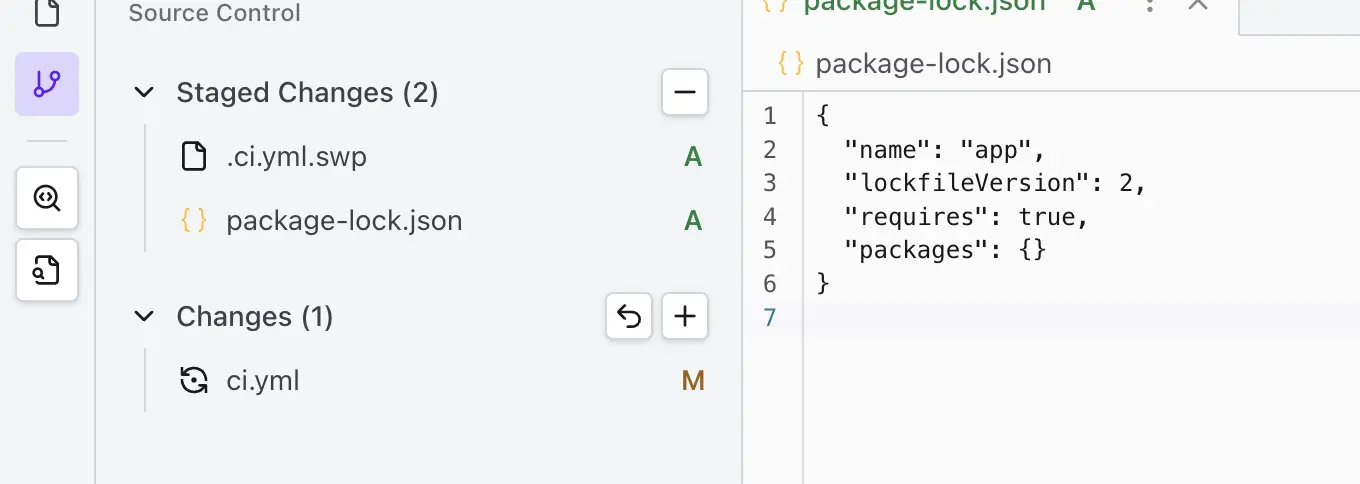
The panel displays your repository status in two sections: CHANGES and STAGED CHANGES.
- View Changed File: Click a file to see its latest version
- Stage/Unstage: Use the
+and-buttons to stage or unstage files - Discard: Revert changes to return a file to its last committed state
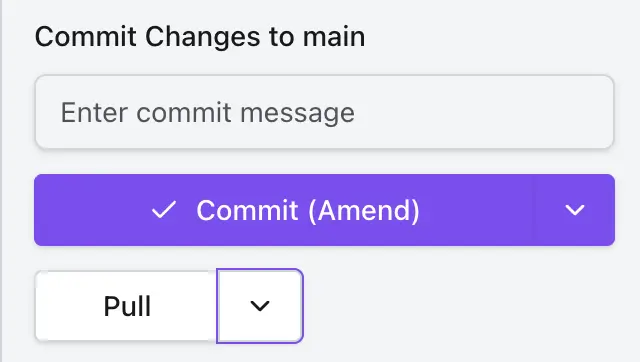
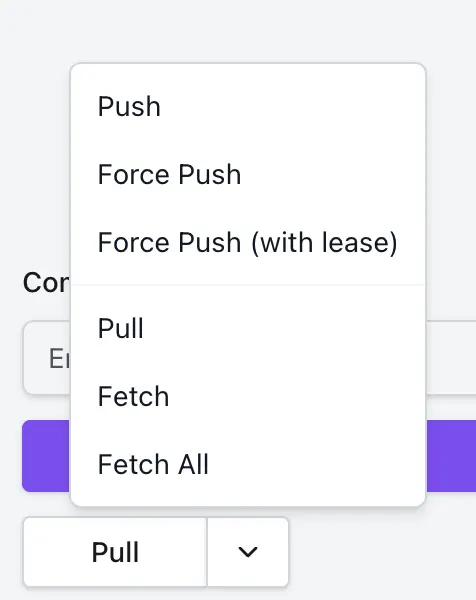
The panel also provides controls to Fetch, Pull, and Push, as well as a text field to Commit changes directly.
Git in the Terminal
Codesphere comes with Git preloaded in the terminal, allowing you to run any Git command you're familiar with from your local CLI.
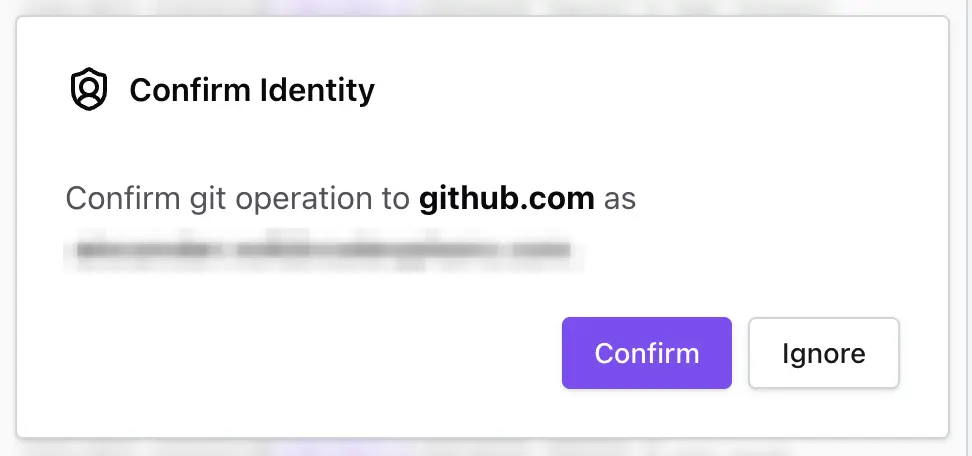
Commits are made in the name of the terminal owner. In pair programming sessions with a shared terminal, when a user executes a git push command, they will be asked to confirm their identity before the push is performed.
Multiplayer Security
Personal access tokens are injected in-flight and never stored in the shared workspace environment.