Landscape Networking
The services inside one Landscape can reach each other without restrictions, while the Landscape as a whole is isolated from the outside. Traffic from the internet or from other landscapes only enters through a single entry point that the user defines.
This page describes the three parts of that model:
- How services inside a Landscape talk to each other.
- How traffic from outside enters the Landscape.
- How the Workspace Router distributes incoming traffic across several services and external targets.
Communication between services within a landscape
Every service in a Landscape is reachable from every other service in the same Landscape. No additional configuration is needed.
-
Reactive Services are addressed under a fixed hostname:
ws-server-<workspace-id>-<reactive-service-name>.workspacesRequests go to the ports you configured for that service. For example, a backend service named
apiin Workspace12345that listens on port8080is reachable at:http://ws-server-12345-api.workspaces:8080Ports must be configuredA service is only reachable on the ports that are declared in its configuration. See Configure ports.
-
Virtual Machines are addressed under a fixed hostname:
ws-vm-<workspace-id>-<virtual-machine-name>.workspaces -
Managed Services have dedicated hostnames, based on the Managed Service Provider. Refer to the Managed Service Provider Reference for provider-specific connection details.
Hostnames for Reactives and Virtual Machines resolve inside the Landscape only. They cannot be reached from a browser, from another Landscape, or from the public internet. Managed services have different isolation levels, based on the provider.
Ingress traffic
Every Workspace is exposed under its dev domain. On top of that, you can attach the Workspace to a path on a custom domain. See Connecting Custom Domain for the setup.
All traffic that arrives over the dev domain or a custom domain is routed to one single endpoint inside the Landscape.
That endpoint is called the landscapeGateway.

In the Landscape configuration you select which service and which port act as the Landscape gateway.
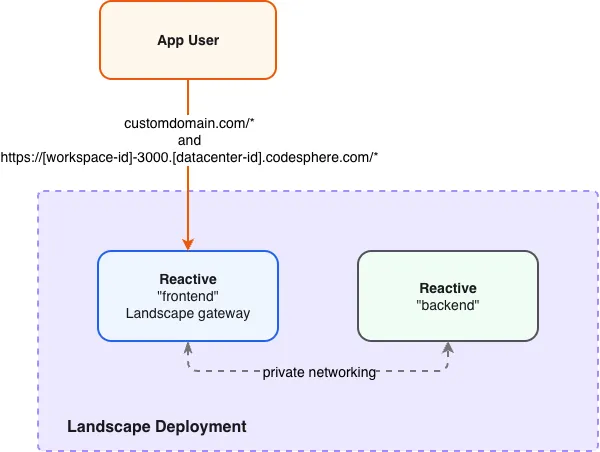
Corresponding accessible text description
- UI
- YAML
- Open the Landscape Config Editor in your Workspace.

- Click the Traffic Routed to badge to open the config.
- Select the desired service as the Landscape gateway and choose the port that serves HTTP traffic.
 Selecting a reactive service to use as the landscape gateway service.
run:
  frontend:
    network:
      ports: [3000, 8080]
      landscapeGateway:
        httpPort: 8080
  backend:
    network:
      ports: [3000]
- network.landscapeGateway.httpPort: The port that receives all traffic entering the Landscape from outside.
A Landscape has at most one Landscape gateway. The port you declare as httpPort must also be declared in the service's ports.
A single service Landscape needs nothing else. The service is the gateway and receives all incoming requests.
Workspace Router
If you want to make several services reachable from outside under different HTTP paths, add a Codesphere Workspace Router to the Landscape and use it as the Landscape gateway. This is the recommended setup for multi-service Landscapes.
The Workspace Router runs as an extra service in the Landscape. You can scale it like a Reactive or a Managed Container, by choosing a plan and a replica count. You do not configure its image or its startup commands. Codesphere builds and runs the router for you, based on the paths you define.
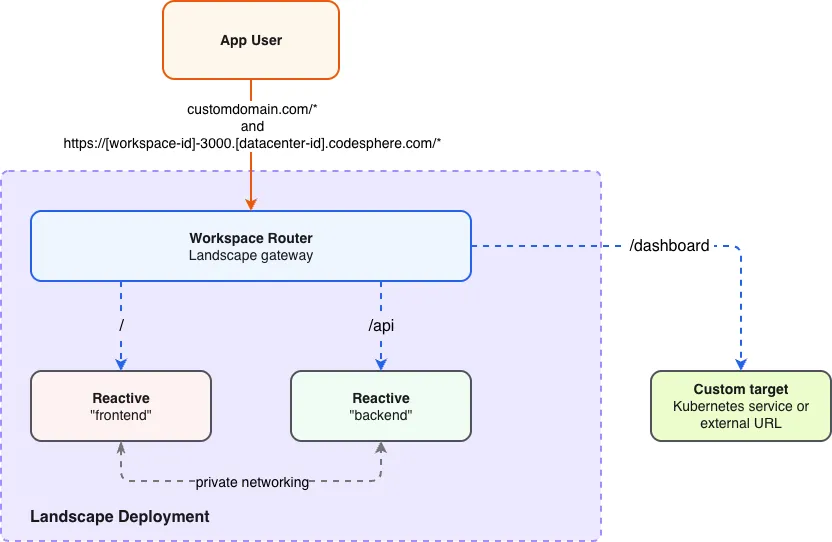
Corresponding accessible text description
Service Networking
Service networking maps a path to a service and port inside the Landscape.
- UI
- YAML
- Add a Codesphere Router service to the Landscape:
-
Option 1: via the Add New Service Modal
 Adding a Codesphere Router runtime to the landscape via the Add New Service Modal.
 -
Option 2: via the Landscape Networking Flyout
 Adding a Codesphere Router runtime to the landscape via the Landscape Networking Flyout.
- Under Service Networking, add a new route.
- Enter the Path prefix, for example
/api. - Select the target Service and Port.
 Adding service networking via the Codesphere Router.
run:
  cs-router:
    type: router
    plan: 101
    replicaCount: 1
    network:
      isLandscapeGateway: true
      paths:
        - path: /
          service: frontend
          port: 8080
          stripPath: false
        - path: /api
          service: backend
          port: 3000
          stripPath: true
Custom target routing
Custom target routing maps a path to an arbitrary URL. Use it to forward traffic to endpoints that are not services of the Landscape, for example:
- Services in a Virtual Kubernetes Cluster
- Managed Services
- Endpoints outside Codesphere
- UI
- YAML
- Add a Codesphere Router service to the Landscape, or open the existing Router's settings. (See section 3.1)
- Under Custom Targets, add a new route.
- Enter the Path prefix.
- Enter the target URL.
 Adding a custom target via the Codesphere Router.
run:
  cs-router:
    type: router
    plan: 101
    replicaCount: 1
    network:
      isLandscapeGateway: true
      externalTargets:
        - path: /dashboard
          target: http://my-headlamp-x-kube-system-x-k8s.rg-${{ team.id }}.svc.cluster.local
          stripPath: false
Strip path
Every path mapping supports the stripPath flag. If it is set, the matched path prefix is removed from the request before it is forwarded to the target.
stripPath | Incoming request | Forwarded to target |
|---|---|---|
false | /api/users | /api/users |
true | /api/users | /users |
Set stripPath: true if your application serves its routes from the root. Leave it at false if your application expects the full path. See Path-Based Routing for how to prepare an application for a subpath.
Templates
You can use templates in the router configuration. They are resolved at runtime, so the same configuration works across Workspaces.
| Template | Description |
|---|---|
${{ workspace.id }} | Resolves to the Workspace ID |
${{ team.id }} | Resolves to the Team ID |
You can designate any of your own services as the Landscape gateway instead of the Workspace Router. In that case you handle the routing yourself, and path mappings are not available. Also, Codesphere's built-in Request Browser requires a Workspace Router to be able to automatically collect traces.